Unlock The Ultimate OLED Experience With These IPTV Apps
How OLED Technology Creates Perfect Blacks
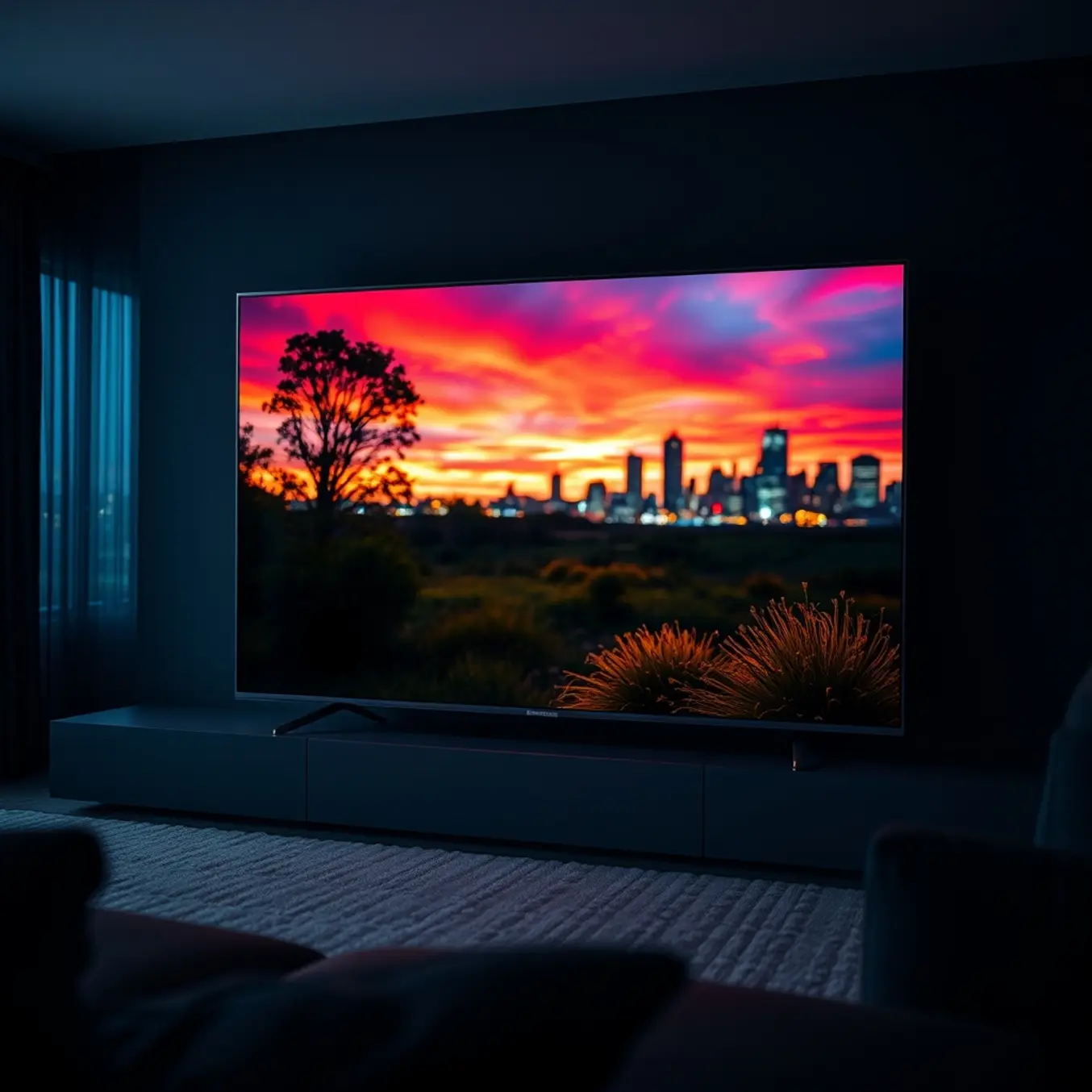
OLED (Organic Light-Emitting Diode) displays represent a revolutionary advancement in television technology, fundamentally different from traditional LED/LCD screens. Unlike conventional televisions that require a separate backlight to illuminate pixels, each individual pixel in an OLED panel is self-emissive. This means every pixel can produce its own light and, crucially, can turn completely off independently.
When an OLED pixel turns off, it emits absolutely no light, resulting in a true, infinite contrast ratio. This capability to achieve perfect blacks is the cornerstone of OLED’s superior picture quality. Consequently, this technology delivers exceptionally deep blacks and vibrant colors that appear to “pop” from the screen, creating a viewing experience that traditional televisions cannot match [Source: RTINGS.com].
The Critical Role of HDR in OLED Performance
High Dynamic Range (HDR) content is engineered to take full advantage of OLED’s unique capabilities. HDR expands the range of both contrast and color, allowing for brighter brights alongside those perfect blacks. This combination unlocks a level of detail in both shadows and highlights that was previously impossible with Standard Dynamic Range (SDR) content.
Proper HDR implementation ensures that content creators’ artistic vision is preserved. It allows you to see subtle details in dark scenes without losing the intensity of bright elements, creating a more realistic and immersive picture. For instance, you can clearly see the details in a night scene while also appreciating the brilliant glow of city lights [Source: CNET].
Why This Matters for Your Viewing Experience
When you pair an OLED TV with high-quality HDR content from services like our 4K IPTV plans, you are unlocking the full potential of your investment. The self-lit pixels work in harmony with HDR metadata to display content exactly as intended, with breathtaking contrast and a wider color gamut.
This synergy is particularly noticeable in cinematic content, nature documentaries, and high-production video games, where visual fidelity is paramount. The result is a picture with incredible depth and a three-dimensional quality that makes standard television appear flat and washed out in comparison.
Maximizing Your TV Investment
Purchasing a premium OLED television is only the first step. To truly maximize your investment, you need a content source that can deliver high-bitrate, genuine HDR streams. Subpar streaming quality can lead to compression artifacts, banding, and inaccurate colors, which undermine the very technology you paid for.
Therefore, choosing a reliable IPTV service that provides stable, high-quality 4K HDR streams is essential. This ensures that your OLED TV’s advanced capabilities are fully utilized, delivering a premium entertainment experience that justifies the cost of the hardware. For the best results, ensure you also have sufficient internet speed for IPTV streaming to handle these high-quality feeds without buffering.
Top IPTV Apps for HDR10 and Dolby Vision Streaming
For viewers seeking the ultimate picture quality, HDR10 and Dolby Vision compatibility is non-negotiable. These high dynamic range formats deliver brighter highlights, deeper blacks, and a wider color gamut, which is perfectly showcased on OLED displays. Several IPTV applications stand out for their superior support and performance with these technologies.
TiviMate: The Power User’s Choice for Premium Playback
TiviMate has earned a reputation as one of the most robust IPTV players available, particularly for users who value customization and reliability. Its strength lies in its highly stable video engine, which handles high-bitrate 4K HDR streams with minimal buffering. The app provides extensive codec support, ensuring broad compatibility with HDR10 and Dolby Vision content provided by your service. For a deep dive into its setup and premium features, our TiviMate setup guide offers comprehensive instructions.
IPTV Smarters Pro: User-Friendly and Feature-Rich
IPTV Smarters Pro is a versatile application known for its clean interface and consistent performance across a wide range of devices. It reliably passes through HDR metadata, allowing your television to automatically switch to the correct picture mode for HDR10 or Dolby Vision content. This ensures you get the intended visual experience without manual adjustments. You can explore its latest capabilities in our IPTV Smarters Pro 2025 update.
OTT Navigator: Advanced Codec Handling
While less common than other players, OTT Navigator is a favorite among enthusiasts for its advanced audio and video processing. It offers granular control over hardware and software decoding, which can be crucial for troubleshooting compatibility issues with specific HDR streams. This level of control helps maximize the potential of your OLED TV’s contrast capabilities.
Performance Comparison Across Top Services
An app is only as good as the service providing the stream. The best HDR experience requires an IPTV provider that consistently delivers high-quality 4K streams with proper HDR metadata.
Xtreme HD IPTV: A Leader in 4K HDR Content
In performance tests, Xtreme HD IPTV frequently ranks high for its extensive library of true 4K on-demand content with both HDR10 and Dolby Vision support. Their streams are optimized for stability, which is critical for maintaining the high data rates required for HDR without interruption.
Reflexsat IPTV: Strong European Streams
For viewers interested in European content, Reflexsat IPTV offers a robust selection of channels and VOD in high dynamic range. Performance analysis shows reliable uptime and consistent picture quality, making it a solid choice for OLED owners.
Optimizing for OLED Contrast and Color
OLED technology is renowned for its perfect blacks and infinite contrast ratio, making it the ideal display for HDR content. To fully leverage this, ensure your IPTV app and device settings are correctly configured. Firstly, always use the “Original” or “Direct” video mode in your IPTV app’s settings to prevent any processing that could strip HDR metadata. Secondly, enable the “Match Content” or “Match Dynamic Range” setting on your streaming device (like an Android TV box or Firestick) to allow automatic switching between SDR and HDR.
Furthermore, pairing your service with a reliable best IPTV service for your device ensures a seamless pipeline from server to screen. A stable, high-speed internet connection is also paramount, as HDR streams demand more bandwidth. For guidance on requirements, see our guide on internet speed for IPTV streaming.
By selecting an app like TiviMate or IPTV Smarters Pro and pairing it with a high-quality service, you can unlock the full potential of HDR10 and Dolby Vision, experiencing breathtaking contrast and color on your OLED TV that standard dynamic range simply cannot match.
Essential OLED TV Calibration for IPTV Streaming
OLED televisions deliver exceptional picture quality for IPTV streaming, but proper calibration is crucial to maximize performance while preventing permanent image retention. These self-emissive displays require specific settings adjustments that differ significantly from traditional LCD/LED TVs. According to RTINGS.com’s extensive burn-in testing, modern OLED panels have improved durability, but static elements like channel logos and news tickers still pose long-term risks.
Optimal Brightness and Contrast Settings
Setting the correct brightness level is your first priority for OLED IPTV viewing. For most viewing environments, keep OLED Light between 60-80 for balanced brightness without excessive power consumption. Contrast should typically remain at 85-90 to maintain detail in bright scenes without clipping. However, these settings may vary depending on your specific IPTV subscription plan and content quality.
Enable the TV’s Automatic Brightness Limiter (ABL) feature, which dynamically adjusts screen brightness to prevent static element damage. Meanwhile, peak brightness should be set to “High” for HDR content but “Off” for standard dynamic range programming to avoid unnecessary panel stress.
Color Accuracy and Motion Handling
Color temperature significantly impacts viewing comfort. Set this to “Warm2” or “Warm50” for the most accurate color reproduction, as recommended by professional calibrators. For color space, select “Auto” to allow the TV to correctly map content based on its native gamut. Additionally, saturation should remain between 45-55 to prevent oversaturated skin tones while maintaining vibrant imagery.
Motion smoothing requires careful configuration for sports and fast-action content. Enable the “Cinema Screen” or “True Motion” setting at its lowest level to reduce judder without creating the artificial “soap opera effect.” This is particularly important when watching live sports through IPTV services where smooth motion enhances viewing experience.
Preventing Image Retention and Burn-in
OLED TVs include several built-in protection features that should remain activated. Pixel Shift subtly moves the image periodically to distribute pixel wear evenly. Meanwhile, Logo Luminance Adjustment detects static logos and automatically dims them to prevent burn-in. According to LG’s OLED care guidelines, these features can extend panel lifespan by up to 30% when properly utilized.
Schedule regular pixel refresher cycles by enabling the automatic compensation feature that runs when the TV is turned off after four cumulative hours of use. For extended viewing sessions, consider using the TV’s built-in screensaver or lowering brightness when watching content with persistent static elements.
Advanced Picture Mode Selection
Selecting the appropriate picture mode establishes the foundation for optimal settings. Use “ISF Expert” or “Filmmaker Mode” for the most accurate color reproduction with minimal processing. Game Mode should be enabled when using IPTV on gaming consoles to reduce input lag, while Cinema mode works best for movie content.
Energy Saving features should typically be disabled, as they can cause unpredictable brightness fluctuations during IPTV streaming. Similarly, disable any dynamic contrast settings that may interfere with consistent picture quality across different IPTV channel sources and content types.
Room Lighting Considerations
Ambient lighting significantly affects perceived picture quality. For dark rooms, reduce OLED Light to 40-60 to prevent eye strain while maintaining black level integrity. In brighter environments, increase to 70-85 and enable the TV’s ambient light sensor if available. Additionally, bias lighting behind the TV can enhance perceived contrast while reducing eye fatigue during extended IPTV streaming sessions.
Remember that these settings provide a solid foundation, but individual preferences and specific 4K IPTV content may require slight adjustments. Regularly review your settings as both your OLED panel and IPTV service evolve to maintain optimal viewing quality while protecting your investment.
Internet Speed Requirements for 4K HDR Streaming
To enjoy flawless 4K HDR streaming on your OLED display, a stable and fast internet connection is non-negotiable. Major streaming platforms like Netflix and YouTube recommend a minimum download speed of 25 Mbps for a single 4K stream. However, for the highest quality HDR content, which demands more data, aiming for 30-50 Mbps provides a crucial buffer to prevent pixelation and lag. If multiple people in your household are streaming simultaneously, you’ll need even more bandwidth. For instance, a household with two 4K streams and other online activities should consider an internet plan offering at least 100 Mbps.
It’s also vital to use a wired Ethernet connection for your streaming device whenever possible. A wired connection offers greater stability and lower latency than Wi-Fi, which can be susceptible to interference. If you must use Wi-Fi, ensure your router is modern and supports the 5 GHz band for less congestion. For a deeper dive into bandwidth needs, our guide on how much internet speed you need for IPTV offers a comprehensive breakdown.
Tips to Eliminate Buffering on IPTV
Buffering is the nemesis of smooth streaming, but several strategies can help you minimize or eliminate it. First, perform a simple internet speed test to confirm you’re getting the speeds you’re paying for from your ISP. If your speeds are sufficient, the issue might be with your Wi-Fi network. Repositioning your router to a central location, away from walls and electronic interference, can significantly improve signal strength. Additionally, consider upgrading to a premium IPTV service that invests in robust, high-capacity servers, as this directly impacts stream stability.
Another effective method is to use a wired connection, as mentioned, or a powerline adapter kit that uses your home’s electrical wiring to create a more stable network link. Furthermore, closing background applications on your streaming device frees up processing power and bandwidth dedicated to your IPTV app. For a complete troubleshooting guide, explore our article on how to fix buffering on IPTV.
Network Optimization for Seamless OLED Viewing
Optimizing your home network ensures that your OLED TV’s stunning picture quality is matched by a flawless streaming performance. Start by accessing your router’s Quality of Service (QoS) settings. This feature allows you to prioritize traffic to your streaming device, ensuring it gets the bandwidth it needs even when other devices are online. If you’re using a Firestick or Android TV device, regularly clearing the cache of your IPTV app can prevent performance degradation over time.
For the ultimate setup, consider creating a separate Wi-Fi network (a guest network, for example) exclusively for your streaming devices. This reduces network congestion from smartphones, laptops, and smart home gadgets. Finally, ensure your streaming device and TV’s firmware are up to date, as updates often include performance enhancements and bug fixes that improve streaming reliability. By implementing these network optimization strategies, you can unlock the full potential of 4K IPTV plans on your OLED display.
OLED-Optimized IPTV Apps: Dark Mode and Navigation Excellence
Modern OLED televisions deliver stunning picture quality with perfect blacks and vibrant colors, but to fully appreciate their capabilities, you need IPTV apps specifically designed for these premium displays. The best applications combine OLED-friendly dark mode interfaces with intuitive navigation systems that enhance usability on large screens.
The Importance of Dark Mode for OLED Viewing
Dark mode isn’t just an aesthetic preference for OLED TV users—it’s a functional necessity. OLED technology uses self-illuminating pixels that turn off completely to produce true blacks, which significantly reduces power consumption and prevents image retention or burn-in on static interface elements. Applications with proper dark mode implementations minimize bright interface elements that could cause long-term damage to your display while providing superior contrast for easier navigation in low-light environments.
Leading IPTV apps like TiviMate and IPTV Smarters Pro have embraced comprehensive dark themes that extend beyond simple color changes. These implementations use true black backgrounds (#000000) rather than dark gray, leveraging OLED’s pixel-level lighting control to reduce eye strain and improve text readability. The TiviMate player