Unlock Seamless Streaming IPTV Players With Native Chromecast Support
Chapter 1: Understanding Chromecast Integration in IPTV
What is Native Chromecast Support in IPTV?
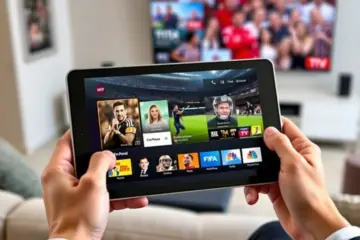
Native Chromecast support in IPTV refers to the direct integration of Google’s casting protocol within an IPTV service or application. This technology allows you to stream content directly from your mobile device, tablet, or computer to your television without the need for screen mirroring. When an app has native Chromecast support, you’ll typically see a cast icon that, when pressed, sends a command to your Chromecast device to pull the video stream directly from the internet, rather than from your phone [Source: Google Support].
The Superior Advantages Over Screen Mirroring
Native Chromecast integration offers several significant benefits compared to traditional screen mirroring. Firstly, it provides superior video and audio quality. Since the Chromecast device streams content directly from the source, it can support higher resolutions, including 4K streaming where available, without being limited by your phone’s processing power or display capabilities.
Secondly, native casting dramatically improves battery life on your mobile device. Your phone acts merely as a remote, rather than processing and transmitting the video stream itself. This means you can continue using your device for other tasks without worrying about rapid battery drain during extended viewing sessions.
Furthermore, native Chromecast support enables true multitasking. You can browse other apps, take calls, or even turn off your phone’s screen entirely without interrupting the stream on your television. The connection remains stable because the Chromecast maintains its own direct link to the content server. This reliability is crucial for uninterrupted entertainment, especially during live sports events or movie marathons.
Technical Requirements for Smooth Chromecast Streaming
To ensure optimal Chromecast performance with your IPTV service, several technical requirements must be met. Your network infrastructure plays the most critical role in delivering smooth, buffer-free streaming. A stable Wi-Fi connection with sufficient bandwidth is essential—Google recommends at least 5 Mbps for HD content and 20 Mbps for 4K streaming. For the best experience, consider using a dual-band router that can dedicate the 5GHz band to your Chromecast, reducing interference from other devices.
Your Chromecast device itself must be compatible with your IPTV service. While most modern Chromecast models (including Chromecast with Google TV) support IPTV casting, older first-generation devices may have limitations. Ensure your Chromecast firmware is updated to the latest version and that it’s connected to the same local network as your casting device.
The performance of your casting device also matters. Whether you’re using a smartphone, tablet, or computer, it should run a relatively recent operating system version and have adequate processing power to handle the IPTV app smoothly. Additionally, some IPTV services may require specific app versions or settings to enable Chromecast functionality, so always check for app updates before attempting to cast.
Optimizing Your Home Network for IPTV Casting
Network configuration can make or break your Chromecast IPTV experience. Position your router centrally and ensure your Chromecast has a strong signal—if possible, use an Ethernet adapter for Chromecast Ultra or newer models to eliminate Wi-Fi variability entirely. Quality of Service (QoS) settings on your router can prioritize streaming traffic, preventing other household internet usage from causing buffering.
Bandwidth management is another crucial factor. If multiple people in your household stream simultaneously, ensure your internet plan provides adequate speed for all activities combined. For households with heavy streaming usage, consider plans offering 100 Mbps or higher, especially if you frequently watch 4K content. Regularly rebooting your router and Chromecast can also resolve many common connectivity issues and maintain optimal performance over time.
For more information on internet requirements for streaming, check out our comprehensive guide on how much internet speed you need for IPTV streaming. Additionally, if you encounter performance issues, our troubleshooting guide on fixing IPTV buffering offers practical solutions for common streaming problems.
Chapter 2: Top IPTV Players with Built-in Chromecast Support
TiviMate: The Premium IPTV Player with Seamless Casting
TiviMate stands out as one of the most popular IPTV players for Android devices, offering a premium experience with robust casting capabilities. While the app itself doesn’t include built-in Chromecast support, users can easily cast their entire screen to Chromecast-enabled devices through Android’s native screen mirroring feature. This workaround allows you to enjoy TiviMate’s intuitive interface, advanced EPG (Electronic Program Guide), and recording features on your television. The app’s developer continues to add new features regularly, making it a favorite among IPTV enthusiasts who value customization and reliability. For detailed setup instructions, check out our comprehensive TiviMate setup guide.
OTT Navigator: Feature-Rich Alternative
OTT Navigator provides another excellent option for IPTV streaming with casting functionality. Similar to TiviMate, it relies on screen mirroring rather than direct Chromecast integration, but delivers exceptional performance when casting from Android devices to televisions. The app supports multiple playlist formats and offers extensive customization options for your channel list and electronic program guide. Its user-friendly interface makes navigation simple, while advanced features like parental controls and favorites management enhance the viewing experience. Many users appreciate OTT Navigator’s stability and regular updates, which ensure compatibility with various IPTV services and casting setups.
IPTV Smarters Pro: Built-in Casting Capabilities
Unlike its competitors, IPTV Smarters Pro offers direct casting functionality within the application. This popular IPTV player includes a dedicated casting button that allows users to stream content directly to Chromecast devices without needing to mirror their entire screen. The feature supports both live TV and video-on-demand content, providing a seamless transition from mobile viewing to television entertainment. Additionally, IPTV Smarters Pro’s multi-screen functionality enables users to watch different channels on multiple devices simultaneously. For those new to this application, our IPTV Smarters Pro setup tutorial provides step-by-step installation and configuration guidance.
XCIPTV Player: User-Friendly Casting Solution
XCIPTV Player has gained popularity for its straightforward interface and reliable casting features. The application includes built-in Chromecast support, allowing users to easily switch between watching on their mobile device and casting to a television with a single tap. Its clean layout and simple navigation make it accessible for users of all technical levels, while still offering advanced features like catch-up TV and recording capabilities. The player’s efficient resource management ensures smooth casting performance even on older devices, making it an excellent choice for households with varying technology specifications.
Choosing the Right Player for Your Needs
When selecting an IPTV player with Chromecast capabilities, consider your specific requirements and technical comfort level. TiviMate and OTT Navigator excel in customization and advanced features but require screen mirroring for casting. Meanwhile, IPTV Smarters Pro and XCIPTV Player offer direct casting functionality with more streamlined interfaces. All four players support standard IPTV features like electronic program guides, favorites management, and parental controls, but their casting implementations vary significantly. Before making your decision, ensure your chosen player is compatible with your preferred streaming device and IPTV service provider.
Optimizing Your Casting Experience
To achieve the best casting performance regardless of which player you choose, several factors contribute to a smooth experience. First, ensure your Wi-Fi network provides sufficient bandwidth for high-quality video streaming—typically at least 15-25 Mbps for HD content. Position your Chromecast device close to your router or use a mesh network system to minimize signal interference. Additionally, keep both your IPTV player and Chromecast firmware updated to the latest versions to benefit from performance improvements and bug fixes. Finally, consider using a VPN for IPTV to enhance privacy and potentially improve streaming stability with certain service providers.
Chapter 3: Setting Up Chromecast with Your IPTV Player
Initial Chromecast Setup
To begin streaming IPTV content through Chromecast, you’ll first need to ensure your devices are properly connected. Start by plugging your Chromecast into an available HDMI port on your television and connecting the power adapter to a wall outlet or USB port. Download the Google Home app on your smartphone or tablet, which serves as the central control hub for Chromecast configuration.
Make sure your mobile device and Chromecast are connected to the same Wi-Fi network during setup. The Google Home app will automatically detect your Chromecast and guide you through the pairing process. This includes naming your device and connecting it to your preferred Wi-Fi network. According to Google’s official setup guide, this initial configuration typically takes less than 10 minutes to complete [Source: Google Support].
Network Configuration for Optimal Performance
A stable network connection is crucial for uninterrupted IPTV streaming through Chromecast. For standard definition content, aim for at least 5-10 Mbps internet speeds, while HD and 4K streaming require 15-25 Mbps or higher. Position your router centrally and minimize physical obstructions between devices to maintain strong signal strength.
Consider using a 5GHz Wi-Fi band instead of 2.4GHz for reduced interference and faster speeds, especially in crowded network environments. Alternatively, Ethernet adapters for Chromecast provide the most stable connection for bandwidth-intensive IPTV streaming. For more detailed network requirements, our guide on IPTV internet speed requirements offers comprehensive information.
Connecting Your IPTV Player to Chromecast
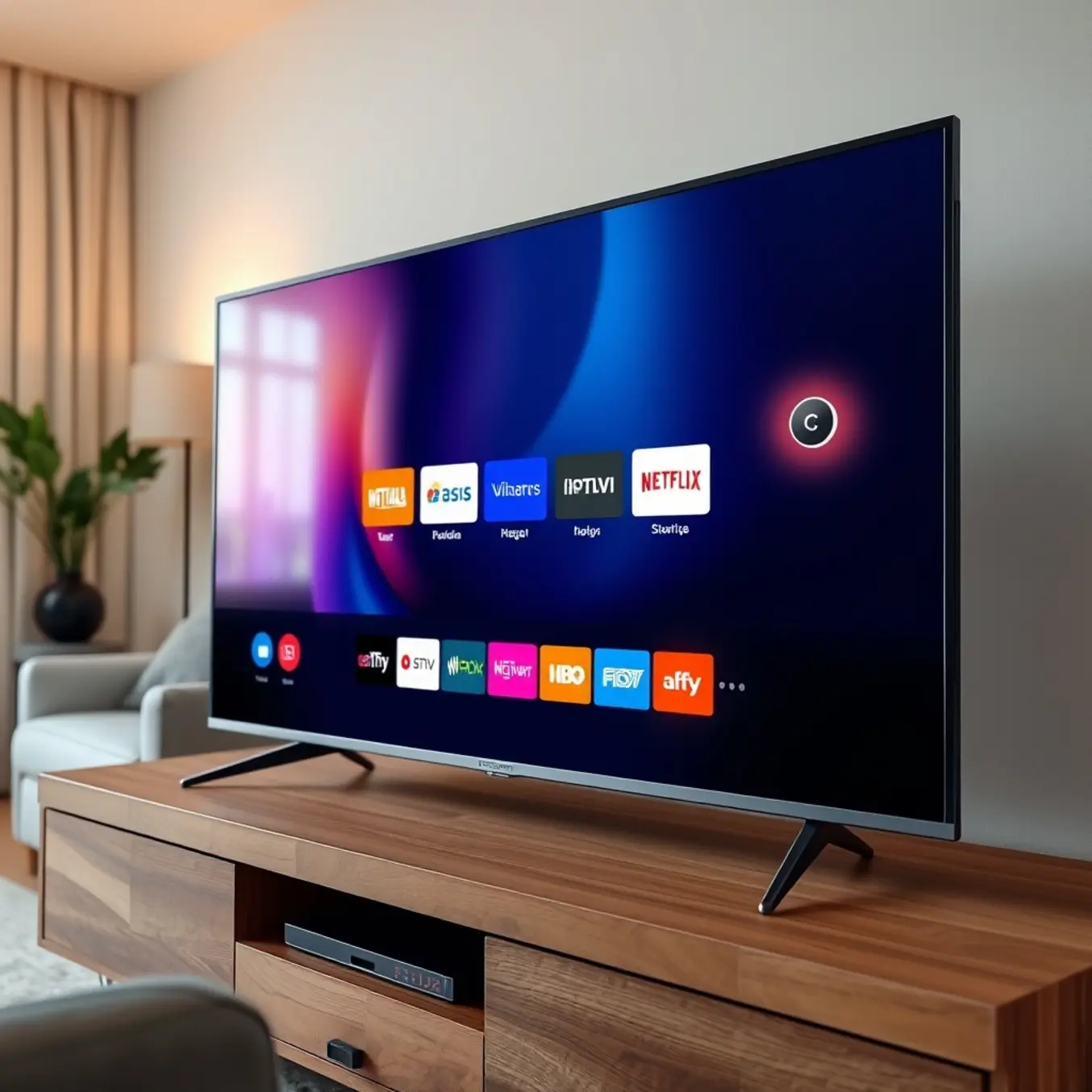
Most modern IPTV applications support Chromecast functionality through the cast icon within the app interface. Open your preferred IPTV player, such as IPTV Smarters Pro or Tivimate, and look for the cast symbol typically located in the upper or lower corner of the screen. Tap this icon and select your Chromecast device from the available list.
Ensure your IPTV subscription is active and your playlist or portal information is correctly configured within the app before attempting to cast. Some IPTV players may require specific settings adjustments for optimal Chromecast compatibility. If you encounter issues, our IPTV Smarters Pro setup guide provides detailed configuration instructions.
Troubleshooting Common Connection Issues
Several factors can disrupt the Chromecast and IPTV streaming experience. If your Chromecast isn’t appearing in the device list, restart both your Chromecast and router, then attempt reconnection. Check that all devices are on the same network, as some routers create separate 2.4GHz and 5GHz networks that can prevent detection.
Buffering or playback interruptions often indicate network congestion or insufficient bandwidth. Close other bandwidth-intensive applications on your network and consider prioritizing your streaming device through Quality of Service (QoS) settings in your router configuration. For persistent buffering problems, our comprehensive buffering troubleshooting guide offers additional solutions.
Optimizing Streaming Quality
Maximize your viewing experience by adjusting both Chromecast and IPTV application settings. Within the Google Home app, you can modify video resolution settings to match your television’s capabilities and internet speed. Most IPTV players allow you to select video quality preferences, with automatic adjustment options that adapt to changing network conditions.
For the best performance, keep your Chromecast firmware updated through the Google Home app and regularly update your IPTV application to the latest version. These updates often include performance enhancements and bug fixes that improve streaming stability. Additionally, consider using a wired Ethernet connection with a Chromecast Ethernet adapter for the most consistent streaming experience, particularly for high-bitrate 4K content available through 4K IPTV plans.
Advanced Configuration Tips
For users seeking enhanced control over their Chromecast IPTV experience, several advanced options are available. Guest mode allows casting without connecting to the same Wi-Fi network, useful for visitors or temporary setups. Meanwhile, mirroring your entire device screen to Chromecast provides an alternative method for content that doesn’t natively support casting.
Consider implementing a VPN for accessing geo-restricted content or enhancing privacy during streaming sessions. However, ensure your VPN is compatible with Chromecast functionality, as some configurations may require router-level VPN setup rather than device-level installation. Our guide on using VPN with IPTV covers this topic in greater detail.
Chapter 4: Advanced Casting Features and Tips
Mastering Multi-Device Casting
Modern casting technology allows you to stream content across multiple devices simultaneously, creating a truly connected entertainment ecosystem. Many premium IPTV services support casting to several screens at once, enabling different family members to watch their preferred content on various devices. This feature is particularly valuable for households with diverse viewing preferences.
To set up multi-device casting, ensure all your devices are connected to the same Wi-Fi network. Most streaming apps include a casting icon that lets you select which device to stream to. For optimal performance, consider upgrading your router if you plan to cast to multiple devices regularly, as this can significantly impact streaming quality. Additionally, our guide on internet speed requirements for IPTV provides detailed information about bandwidth needs for multi-device streaming.
Advanced Playlist Management Techniques
Effective playlist management transforms your streaming experience from chaotic to curated. Most IPTV players allow you to create custom playlists, organize channels by category, and set favorites for quick access. You can typically sort channels by genre, language, or popularity, making navigation seamless.
For advanced users, M3U playlist customization offers granular control over your channel lineup. You can remove unwanted channels, reorganize the sequence, and even combine multiple playlists into a single unified interface. Our comprehensive guide on M3U links in IPTV explains how to leverage this powerful feature for personalized streaming.
Recording While Casting: Never Miss Content
The ability to record content while casting provides flexibility that traditional television cannot match. Many IPTV applications include built-in recording features that let you capture live broadcasts for later viewing. This is especially useful for sports events, news programs, or shows that air during inconvenient times.
To record while casting, ensure your device has sufficient storage space and a stable internet connection. Some services offer cloud-based recording options, eliminating local storage concerns. Meanwhile, external storage devices can expand your recording capacity significantly. Check your IPTV provider’s specific recording capabilities, as features vary between services.
Customizing Preferences for Enhanced Experience
Personalization settings can dramatically improve your casting experience. Most streaming applications allow you to adjust video quality based on your internet speed, configure audio output preferences, and set parental controls. You can also customize subtitles, including font size, color, and timing synchronization.
Advanced users should explore picture-in-picture modes, sleep timers, and automated recording schedules. Many IPTV apps also offer theme customization, allowing you to change the interface appearance to suit your preferences. Furthermore, our guide on TiviMate settings for optimal streaming provides specific recommendations for maximizing performance.
Optimizing Performance Across Devices
Different devices require specific optimization strategies for the best casting experience. For Smart TVs, ensure your firmware is updated regularly and close background applications to free up resources. Meanwhile, streaming sticks like Firestick benefit from regular cache clearing and storage management.
Mobile devices perform best when connected to 5GHz Wi-Fi networks rather than 2.4GHz, as the former offers better speed and reduced interference. Additionally, using Ethernet adapters for stationary devices can provide more stable connections than wireless alternatives. For detailed device-specific setup instructions, consult our Firestick IPTV setup guide and Samsung Smart TV IPTV guide.
Troubleshooting Common Casting Issues
Even with optimal setup, casting issues can occasionally arise. Buffering problems often stem from insufficient bandwidth or network congestion. Solutions include reducing video quality temporarily, scheduling downloads during off-peak hours, or upgrading your internet plan.
Connection drops between devices typically result from Wi-Fi signal interference or outdated application versions. Ensure your casting app and device operating systems are current, and consider repositioning your router for better coverage. For persistent problems, our comprehensive