The Ultimate IPTV Router Setup Guide For Buffer Free Streaming
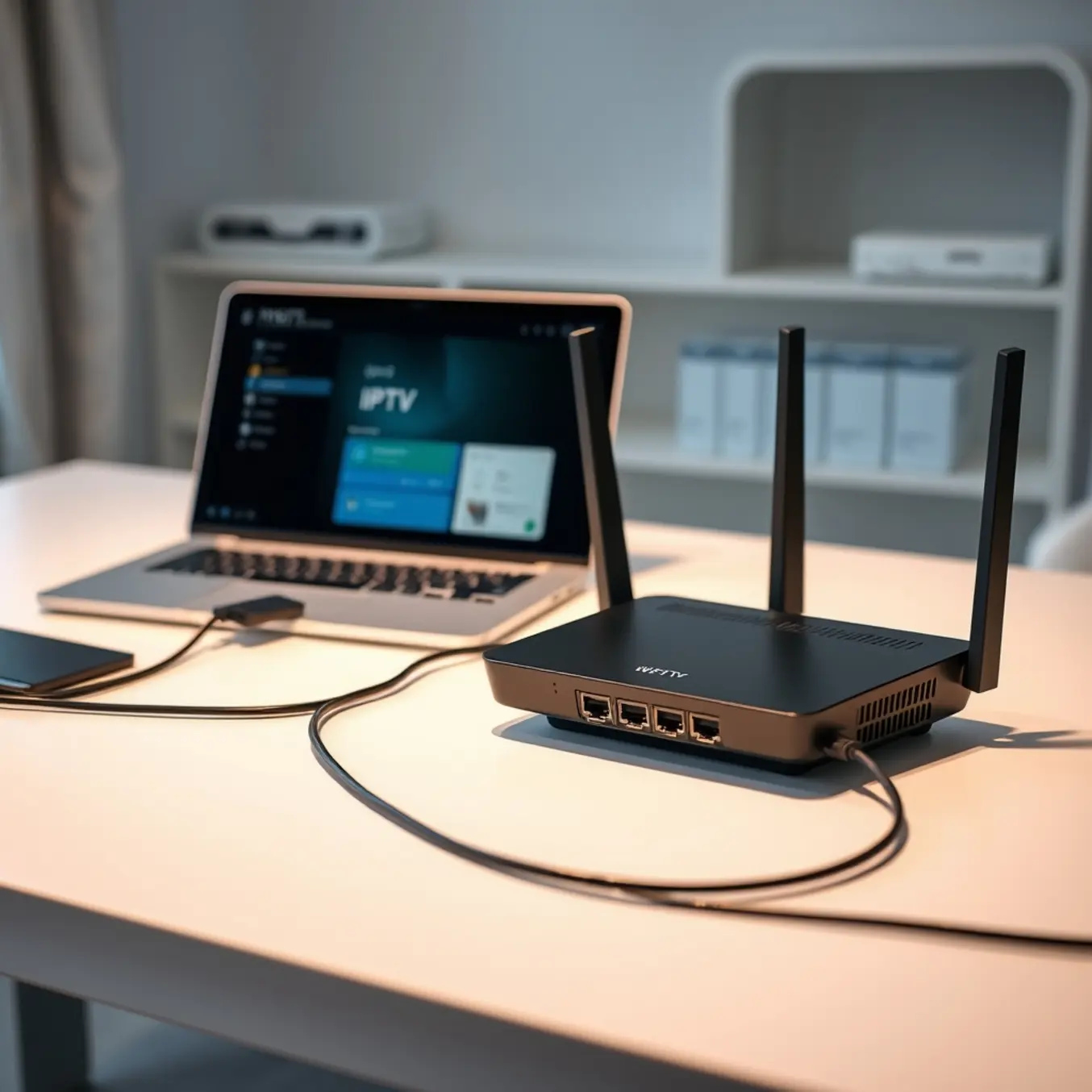
Why Your Router Matters for IPTV
Your router serves as the central hub for all internet traffic in your home, making it a critical component for IPTV streaming quality. Unlike traditional cable TV, IPTV delivers television content through your internet connection, which means your router’s performance directly impacts your viewing experience. A high-quality router ensures stable data transmission between your IPTV service and streaming devices, preventing the frustrating buffering and pixelation that can ruin movie nights or live sports events.
Meanwhile, insufficient router capabilities often create bottlenecks that degrade stream quality. For instance, older routers may struggle with the bandwidth demands of modern 4K content, even if you have a fast internet plan. Additionally, router placement and Wi-Fi signal strength significantly affect streaming stability, particularly for devices located farther from the router.
Minimum Router Specifications for HD and 4K IPTV
To ensure smooth, buffer-free IPTV streaming, your router should meet these minimum specifications:
- Dual-Band Wi-Fi Support: Routers supporting both 2.4GHz and 5GHz bands provide flexibility for connecting multiple devices. The 5GHz band offers less interference and faster speeds, making it ideal for 4K streaming [Source: PCMag].
- Gigabit Ethernet Ports: For wired connections, gigabit Ethernet ports ensure maximum bandwidth availability, which is crucial for maintaining consistent stream quality [Source: How-To Geek].
- MU-MIMO Technology: Multi-User, Multiple-Input, Multiple-Output technology allows routers to communicate with multiple devices simultaneously, reducing latency when multiple household members stream content [Source: Tom’s Guide].
- Quality of Service (QoS) Features: QoS settings let you prioritize IPTV traffic over other internet activities, ensuring your streams receive the necessary bandwidth [Source: Lifewire].
Optimizing Your Router for IPTV Performance
Beyond meeting minimum specifications, proper router configuration can significantly enhance your IPTV experience. First, enable Quality of Service settings to prioritize streaming traffic over other internet activities like downloads or gaming. This ensures your IPTV streams receive the bandwidth they need during peak usage times. Additionally, consider using a wired Ethernet connection for your primary streaming device whenever possible, as this eliminates Wi-Fi interference and provides more consistent performance.
Furthermore, router placement plays a crucial role in streaming quality. Position your router centrally in your home and away from obstructions and electronic interference sources like microwaves and cordless phones. For larger homes, mesh Wi-Fi systems can eliminate dead zones that cause buffering. Regularly updating your router’s firmware also ensures you benefit from the latest performance improvements and security patches.
Finally, remember that your router works in conjunction with your internet speed. While a quality router is essential, it cannot compensate for insufficient bandwidth. For optimal 4K streaming, ensure your internet plan provides at least 25 Mbps for a single 4K stream, with additional bandwidth for other connected devices [Source: AllInOneTV].
Processor Power: The Brain Behind Smooth Streaming
Your router’s processor plays a crucial role in handling IPTV data packets efficiently. Dual-core processors have become the standard for modern routers, but for households with multiple simultaneous streams, consider upgrading to a tri-core or quad-core processor. These more powerful processors can better manage the data demands of 4K IPTV plans while maintaining smooth performance across all connected devices.
According to networking experts, routers with insufficient processing power may struggle with real-time video decoding, leading to the frustrating buffering cycles that interrupt your viewing experience. Therefore, investing in a router with adequate processing capabilities ensures your entertainment remains uninterrupted.
Memory Matters: RAM for Router Performance
Router memory (RAM) determines how efficiently your device can handle multiple tasks simultaneously. For IPTV streaming, especially when using superior streaming services on multiple devices, a minimum of 256MB RAM is recommended. However, for optimal performance with high-definition content, consider routers with 512MB or more.
Additional RAM allows your router to maintain stable connections and quickly process the data packets required for smooth video playback. This becomes particularly important when streaming content from live sports events where consistent performance is critical.
HD vs. 4K Streaming: Understanding the Bandwidth Divide
The jump from standard HD to 4K Ultra HD is more than just a boost in pixel count—it’s a fundamental shift in the amount of data required for a smooth viewing experience. Standard High Definition (HD), typically 720p or 1080p, delivers a clear picture at a manageable data rate. In contrast, 4K UHD quadruples the number of pixels, resulting in a dramatically sharper and more detailed image that demands significantly more bandwidth.
For reliable HD streaming, most providers recommend a minimum internet speed of 5-10 Mbps. This is sufficient to handle the data flow for a single stream without buffering interruptions. However, when you step up to 4K content, the requirements increase substantially. A stable connection of 25 Mbps or higher is generally considered the baseline for a single 4K stream. This ensures that the large data packets of ultra-high-definition video can be delivered consistently.
Why 4K Demands More from Your Network
The core reason for this disparity lies in the sheer volume of data. A 1080p stream might use anywhere from 3 to 8 GB of data per hour. Meanwhile, a 4K stream can easily consume 7 to 15 GB per hour, with some high-bitrate services using even more [Source: HighSpeedInternet.com]. This higher bitrate is essential for preserving the fine details, vibrant colors, and high dynamic range (HDR) that make 4K content so immersive.
Consequently, your home network’s overall health becomes critical. A wired Ethernet connection is always preferable for 4K streaming, as it provides the most stable and fastest data transfer. If using Wi-Fi, a strong 5 GHz signal is necessary to handle the bandwidth without interference. For more detailed guidance, our article on how much internet speed you need for IPTV offers a deeper dive into connection requirements.
Planning for Multiple Streams and Household Use
It’s also crucial to consider your total household internet usage. If multiple people are streaming simultaneously—one in 4K and others in HD, for example—you must factor in the combined bandwidth. A 25 Mbps connection might suffice for a single 4K stream, but it could struggle if other devices are also online. For a household with heavy streaming, a plan offering 50-100 Mbps or more provides the necessary headroom to prevent buffering across all devices.
Ultimately, choosing between HD and 4K comes down to a balance between visual quality and the capabilities of your internet service. While 4K offers a superior picture, it requires a robust and fast internet connection to unlock its full potential without frustrating interruptions. If you’re ready to experience the best, explore our dedicated 4K IPTV plans designed for high-performance streaming.
Router Configuration for Optimal IPTV Performance
Configuring your router settings can dramatically improve your IPTV streaming experience by reducing buffering, enhancing video quality, and ensuring reliable connections. While choosing the right IPTV subscription plan is crucial, optimizing your network settings ensures you get the most from your service.
Quality of Service (QoS) Settings
Quality of Service (QoS) prioritizes IPTV traffic over other internet activities, preventing bandwidth competition from downloads, gaming, or video calls. Most modern routers include QoS settings in their administration panel. According to networking experts, enabling QoS can reduce IPTV buffering by up to 70% in households with multiple connected devices.
To configure QoS, access your router’s settings through a web browser and locate the QoS or Traffic Prioritization section. Here, you can either prioritize streaming applications specifically or assign higher priority to the device running your IPTV service. For optimal results, set your streaming device or IPTV application as the highest priority to ensure consistent bandwidth allocation.
Port Forwarding Configuration
Port forwarding directs specific network traffic directly to your streaming device, potentially improving connection stability and reducing latency. While not always necessary for IPTV, it can resolve connectivity issues with certain services. The required ports vary by provider but commonly include ports 80, 443, and 8080 for HTTP/HTTPS traffic.
To set up port forwarding, you’ll need to assign a static IP address to your streaming device first, then create forwarding rules in your router’s administration panel. Enter the specific ports your IPTV provider recommends and direct them to your device’s static IP address. This direct pathway can enhance performance, particularly for live sports streaming where milliseconds matter.
DNS Server Optimization
Your Domain Name System (DNS) translates website addresses into IP addresses, and using faster DNS servers can improve overall internet performance. Default ISP DNS servers are often slower than public alternatives like Google DNS (8.8.8.8, 8.8.4.4) or Cloudflare DNS (1.1.1.1). Research indicates that switching to optimized DNS servers can reduce connection times by up to 30%.
To change DNS settings, access your router’s administration panel and locate the DNS settings, typically found in the WAN or Internet section. Replace the automatic DNS settings with your preferred DNS server addresses. This simple change can result in faster channel loading and more responsive navigation through your IPTV applications.
Additional Network Optimizations
Beyond these core settings, several other adjustments can enhance IPTV performance. Enable UPnP (Universal Plug and Play) to allow devices to automatically configure port forwarding when needed. Adjust your wireless channel settings to reduce interference if using Wi-Fi, and consider upgrading to a 5GHz network for less congestion. Additionally, ensure your router firmware is updated to the latest version for security and performance improvements.
For users experiencing persistent buffering despite these optimizations, our comprehensive guide on fixing IPTV buffering issues offers additional troubleshooting steps. Remember that these router optimizations work in conjunction with having adequate internet speed, as detailed in our article on IPTV bandwidth requirements.
Properly configured router settings create a solid foundation for seamless IPTV streaming, complementing the quality of your chosen service and ensuring you enjoy uninterrupted entertainment across all your favorite channels and content.
Understanding QoS for IPTV Streaming
Quality of Service (QoS) is a router feature that prioritizes specific types of internet traffic to ensure optimal performance. For IPTV streaming, this means your television content gets bandwidth priority over other activities like web browsing or file downloads. Consequently, implementing QoS can eliminate buffering and maintain picture quality even when multiple devices are connected to your network.
According to networking experts, IPTV streams require consistent bandwidth to prevent interruptions. Cisco’s networking documentation explains that real-time applications like video streaming benefit significantly from traffic prioritization. Meanwhile, our guide on internet speed requirements for IPTV provides additional context about bandwidth needs.
Accessing Your Router’s QoS Settings
First, you’ll need to access your router’s administration panel. Open a web browser and enter your router’s IP address (commonly 192.168.1.1 or 192.168.0.1). Then, log in using your administrator credentials. If you haven’t changed these, check your router’s documentation for default login information.
Navigate to the QoS settings, which might be labeled as “Traffic Control,” “Bandwidth Management,” or similar terminology depending on your router manufacturer. For example, ASUS routers typically place QoS under “Adaptive QoS” in the administration menu, while Netgear routers often use “QoS Setup” under the advanced settings section.
Configuring IPTV Traffic Prioritization
Once in the QoS settings, you’ll typically find several configuration options. The most effective approach for IPTV involves creating rules based on either device MAC addresses or specific port numbers.
Method 1: Device-Based Prioritization
- Locate your IPTV device’s MAC address in its network settings
- Create a high-priority rule for this specific MAC address
- Assign the highest available priority level (often “Highest” or “Real-Time”)
Method 2: Port-Based Prioritization
- Identify the ports used by your IPTV service (commonly UDP ports 2020-2021 or specific ranges provided by your provider)
- Create high-priority rules for these port numbers
- Set traffic classification to “Streaming” or “Video” if available
The TP-Link support documentation provides specific guidance for their devices, noting that “real-time applications like VoIP and video streaming should be given the highest priority.”
Testing and Optimizing Your QoS Configuration
After configuring QoS, test your IPTV stream while simultaneously running bandwidth-intensive activities on other devices. Download large files, stream video on another screen, or run speed tests to simulate network congestion. Your IPTV should maintain smooth playback without buffering.
If issues persist, consider these additional optimizations:
- Reduce the number of connected devices during peak viewing times
- Upgrade your internet plan if bandwidth is consistently insufficient
- Use wired Ethernet connections instead of Wi-Fi for IPTV devices when possible
- Consult our buffering troubleshooting guide for additional solutions
Research from the Journal of Network and Computer Applications confirms that proper QoS configuration can reduce video packet loss by up to 70%, significantly improving streaming quality.
Advanced QoS Considerations
For users with more technical expertise, some routers offer advanced QoS features that provide finer control. Bandwidth reservation allows you to guarantee minimum bandwidth for IPTV, while traffic shaping can smooth out bursts that might cause buffering.
Additionally, if you’re using our 4K IPTV plans, remember that ultra-high-definition content requires approximately 25 Mbps of stable bandwidth. Therefore, ensure your QoS settings account for these higher requirements compared to standard HD streams.
Finally, periodically review your QoS settings, especially after router firmware updates or when adding new devices to your network. Proper configuration ensures that your investment in quality IPTV service translates to consistently excellent viewing experiences.
Understanding Port Forwarding for IPTV
Port forwarding is a networking technique that directs specific internet traffic to a particular device on your local network. For IPTV services, this process can significantly improve streaming quality by creating a direct pathway for video data to reach your streaming device. When configured properly, port forwarding reduces buffering, minimizes connection drops, and enhances overall viewing stability.
Many IPTV connectivity issues stem from routers blocking incoming traffic by default for security reasons. Consequently, your streaming device may struggle to maintain a consistent connection with the IPTV server. By setting up port forwarding, you essentially tell your router which device should receive the IPTV data, eliminating confusion and improving data flow.
Preparing for Port Forwarding Configuration
Before beginning the port forwarding process, gather essential information about your network setup. You’ll need to know your streaming device’s IP address, identify which ports your specific IPTV service requires,