Optimize Your IPTV Experience With DNS Settings
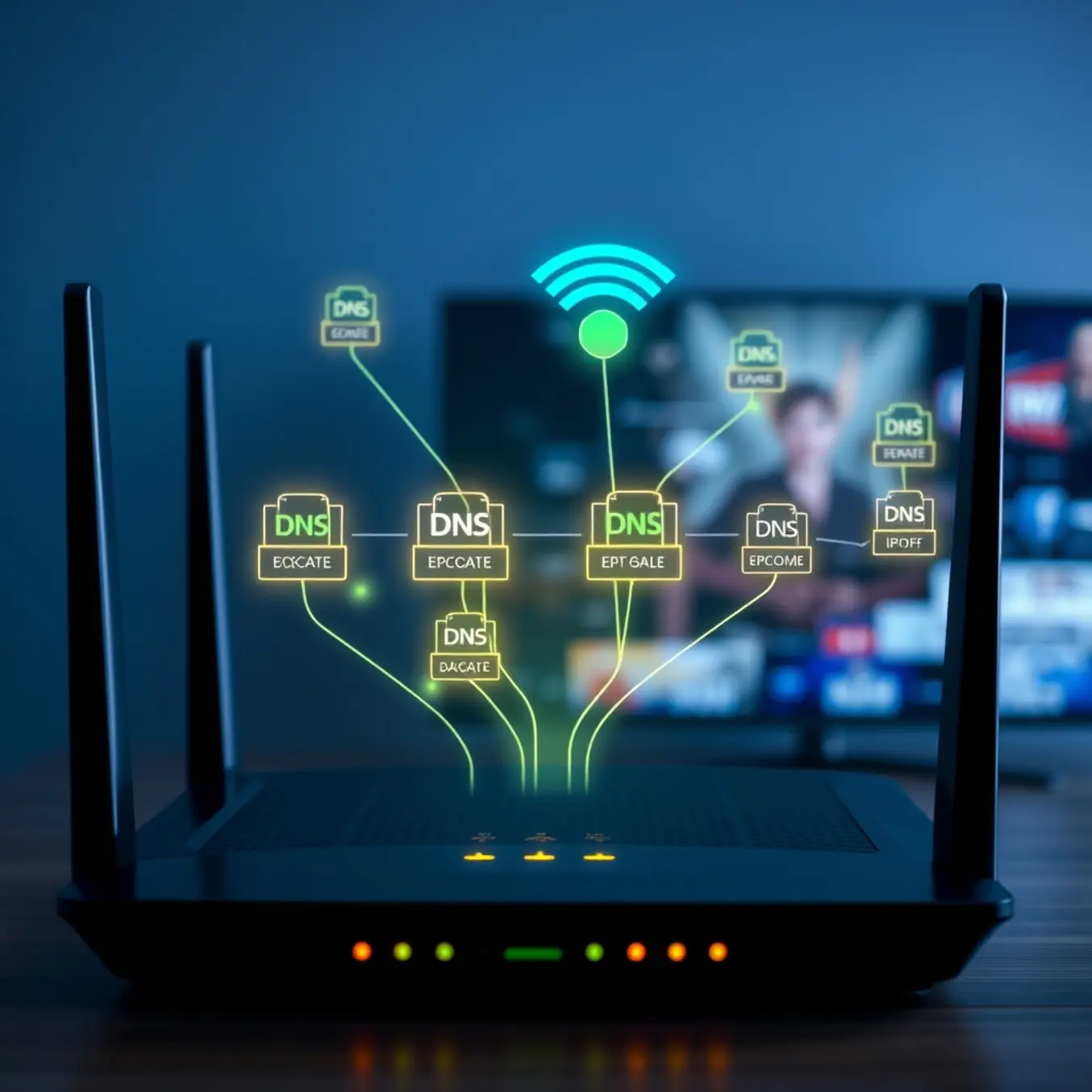
How DNS Works and Its Impact on IPTV Streaming
The Domain Name System (DNS) functions as the internet’s phonebook, translating human-readable website names into numerical IP addresses that computers use to communicate [Source: Cloudflare – What Is DNS?]. When you access IPTV content, your device sends DNS queries to locate streaming servers, and this translation process happens behind the scenes every time you select a channel. The efficiency of your DNS service directly impacts your streaming experience, as slow resolution times can cause buffering before content even begins loading.
DNS resolution occurs through a hierarchical system involving multiple servers. Your request typically travels from your device to a recursive resolver, then to root servers, top-level domain servers, and finally authoritative name servers. This entire process usually takes just milliseconds, but according to networking experts, DNS resolution times can account for up to 50% of initial connection delays when accessing streaming content.
How DNS Configuration Affects IPTV Performance
DNS plays a crucial role in IPTV streaming quality because it determines how quickly your device can locate and connect to content delivery networks (CDNs) and streaming servers. When DNS queries take too long to resolve, they create bottlenecks that delay the actual video data transfer, leading to buffering and connection issues [Source: PC Mag – How to Change Your DNS Server].
Several telltale signs indicate DNS problems with your IPTV service. If you experience consistent buffering during channel changes but stable playback once streams begin, this suggests DNS resolution delays. Connection failures that resolve after refreshing your app often point to DNS caching issues. Additionally, geographic distance to your DNS server significantly impacts performance, as many users stick with their ISP’s default DNS servers which might not be optimized for IPTV streaming.
Best DNS Providers for IPTV Streaming
Google DNS (8.8.8.8 and 8.8.4.4)
Google’s public DNS service is one of the most popular choices for IPTV users seeking improved streaming performance. As one of the world’s largest DNS providers, Google DNS offers exceptional speed and reliability that can significantly reduce buffering during live TV streaming. According to performance tests, Google DNS typically provides response times under 30ms for most users, making it an excellent option for real-time video content.
Cloudflare DNS (1.1.1.1 and 1.0.0.1)
Cloudflare DNS has gained significant popularity among IPTV users for its strong emphasis on privacy and impressive speed. The service promises not to write user querying IP addresses to disk and wipes all logs within 24 hours, making it an attractive option for privacy-conscious streamers [Source: Cloudflare Privacy Commitment]. In terms of performance, Cloudflare often outperforms other DNS providers in independent speed tests, with average response times frequently below 15ms.
OpenDNS (208.67.222.222 and 208.67.220.220)
Now owned by Cisco, OpenDNS offers robust DNS services with additional security features that benefit IPTV streaming. The service includes phishing protection and malicious website blocking, which can help protect your streaming devices from potential threats [Source: Cisco OpenDNS Security]. While OpenDNS may not always be the absolute fastest option, it provides excellent reliability and uptime, which is crucial for uninterrupted IPTV viewing.
Configuring DNS on Your Router for Network-Wide Improvements
Changing your router’s DNS settings provides network-wide benefits for IPTV streaming, eliminating the need to configure DNS on individual devices. According to Cloudflare, optimized DNS resolution can decrease website loading times by up to 30%, which directly translates to smoother IPTV streaming.
To configure your router’s DNS settings, access your router’s administration panel through your web browser (commonly at 192.168.1.1 or 192.168.0.1). Navigate to internet or WAN settings, locate DNS configuration options, and replace your current DNS servers with your chosen alternatives. For primary DNS, enter 1.1.1.1 (Cloudflare) or 8.8.8.8 (Google), and for secondary DNS, use 1.0.0.1 or 8.8.4.4 respectively. Save changes and restart your router to apply the new settings.
Device-Specific DNS Configuration for IPTV
Smart TVs
For Samsung Smart TVs, navigate to Settings > General > Network > Network Status > IP Settings. Change DNS from “Automatic” to “Enter manually” and input your preferred DNS addresses. On LG Smart TVs, access DNS through Settings > All Settings > Network > Wi-Fi Connection > Advanced Wi-Fi Settings > DNS. Switch from “Automatic” to “Manual” and enter your preferred DNS servers. For detailed guidance, check our comprehensive Samsung Smart TV IPTV setup guide and LG Smart TV IPTV guide.
Streaming Devices
For Amazon Firestick, go to Settings > My Fire TV > About > Network. Note your current network, then return to Settings > Network > Your Wi-Fi Network > Advanced. Change DNS settings to manual and enter your preferred DNS addresses. On Android TV devices, access Settings > Network & Internet > Wi-Fi, press and hold your connected network, select “Modify Network,” then choose “Advanced Options.” Change IP settings to “Static” and enter DNS addresses. Our Firestick IPTV setup guide provides complete configuration instructions.
DNS Caching and Prefetching for Enhanced Performance
DNS caching stores IP addresses of frequently accessed streaming servers locally, eliminating repeated external DNS lookups for the same domains. This process significantly reduces latency, resulting in faster channel loading and more responsive viewing. You can clear your DNS cache if you encounter connection issues, forcing your system to fetch fresh DNS records. For optimal performance, consider using faster DNS servers like Google Public DNS or Cloudflare’s 1.1.1.1 instead of your ISP’s default servers.
Prefetching is another performance-enhancing technique where your IPTV app proactively loads data it predicts you will need. When browsing electronic program guides, the app might begin buffering streams for channels you’re likely to select next, making channel switching nearly instantaneous. Modern IPTV players and best IPTV apps for Android often incorporate intelligent prefetching algorithms, though this requires a stable internet connection to be effective.
Testing and Troubleshooting DNS for IPTV
Verifying DNS improvements requires specialized tools that measure connection performance. Google’s Public DNS performance test and DNS Benchmark provide comprehensive analysis of DNS response times, helping determine if switching providers will benefit your IPTV streaming. These tools measure critical metrics like query response times and server reliability, which directly impact channel loading speeds.
When basic DNS changes don’t resolve streaming issues, advanced troubleshooting techniques can identify deeper network problems. DNS leak tests verify whether your DNS requests are being routed through unintended servers, which can occur even after changing settings. Additionally, traceroute tools help identify specific network hops where delays occur, pinpointing whether problems originate from DNS resolution or network routing issues. For persistent problems, our IPTV buffering solutions guide offers comprehensive troubleshooting strategies.
Security Considerations for IPTV DNS Configuration
While optimizing DNS for performance, security should never be overlooked. Using a Virtual Private Network (VPN) is one of the most effective ways to secure your IPTV connection. A VPN encrypts all data between your device and the internet, shielding your viewing habits from your ISP and potential eavesdroppers. Moreover, a VPN allows you to access geo-blocked content by masking your real location.
For persistent connection issues, consider using DNS-over-HTTPS (DoH) or DNS-over-TLS (DoT), which encrypt DNS queries to prevent interference from ISPs or other third parties. These advanced protocols can bypass network-level restrictions that sometimes affect IPTV services. However, ensure your IPTV provider supports these protocols, as some may experience compatibility issues.
Ongoing DNS Maintenance for Consistent IPTV Performance
Regular DNS performance monitoring ensures your IPTV streaming remains optimal over time. Schedule monthly DNS speed tests to detect any degradation in performance, as network conditions and server loads change frequently. Consider implementing automated monitoring tools that alert you when DNS response times exceed acceptable thresholds.
Documenting your DNS configuration and performance metrics creates a valuable reference for future troubleshooting. This documentation helps identify patterns and correlations between DNS performance and specific IPTV issues. Furthermore, understanding how DNS interacts with other network components, including your internet speed requirements for IPTV, provides a comprehensive approach to streaming optimization.
Sources
- Akamai – How DNS Affects Website Performance
- Cisco – What Is DNS Security?
- Cloudflare – 1.1.1.1 Privacy Commitment
- Cloudflare – What Is DNS?
- DNSPerf – DNS Performance Rankings
- Google – Public DNS
- How-To Geek – The Ultimate Guide to Changing Your DNS Server
- PC Mag – How to Change Your DNS Server for Faster Internet
- Speedtest by Ookla
- TechRadar – Cloudflare DNS vs Google DNS vs Quad9 DNS vs OpenDNS