Solving IPTV Audio Sync Problems A Complete Troubleshooting Guide
What Is Audio Sync and Why It Matters for IPTV
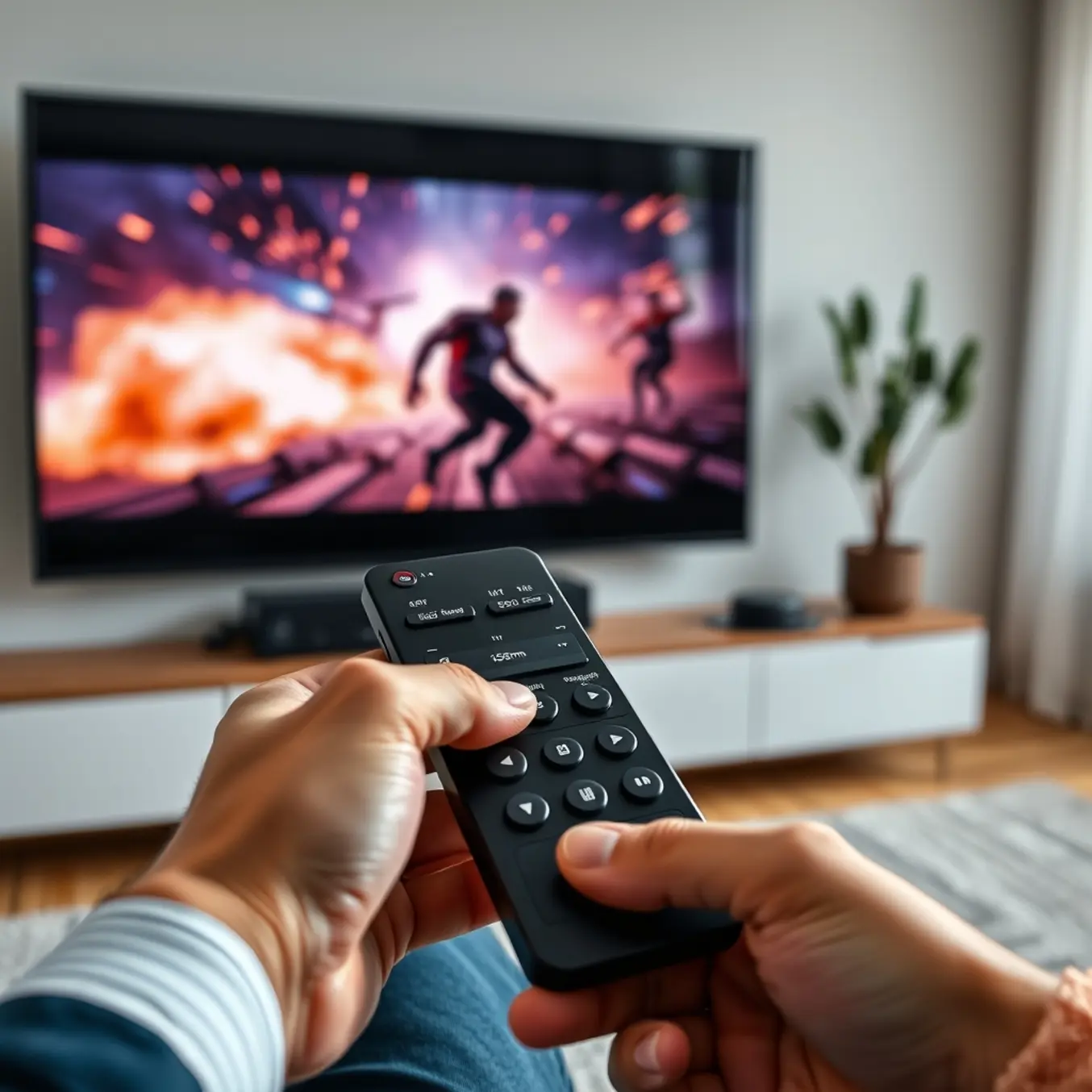
Audio sync, also known as lip sync, refers to the precise timing alignment between audio and video streams during playback. When properly synchronized, you see characters’ mouth movements match their spoken words perfectly. However, when this timing is off, it creates a distracting disconnect that can ruin your viewing experience.
Proper audio synchronization is particularly crucial for IPTV because internet protocol television relies on data packets being transmitted, decoded, and rendered in perfect harmony. Unlike traditional broadcast television with fixed transmission paths, IPTV streams travel through various network components where delays can occur at multiple points. This makes synchronization challenges more common in IPTV environments.
Why Audio Sync Problems Occur in IPTV
Several factors contribute to audio sync issues in IPTV systems. Network latency is a primary culprit, as data packets may experience varying transmission delays across internet infrastructure. Additionally, buffering problems can disrupt the delicate timing between audio and video streams.
Device processing capabilities also play a significant role. Different television models, streaming boxes, and audio systems process video and audio signals at different speeds. For instance, some TVs apply extensive video processing that delays the picture, while the audio passes through unaffected. This mismatch creates the sync problems viewers notice.
Encoding and decoding inconsistencies represent another common source of sync issues. When content providers compress audio and video using different codecs or settings, the resulting streams may not maintain perfect synchronization throughout the transmission chain.
Common Symptoms of Lip Sync Issues
Recognizing audio sync problems early can help you address them before they ruin your entertainment experience. The most obvious symptom is when characters’ lip movements don’t match the dialogue you hear. This discrepancy typically manifests as audio either lagging behind or preceding the corresponding video.
Another telltale sign involves sound effects that occur at the wrong moments. For example, you might hear a gunshot before seeing the weapon fire, or a door slam after it has already closed on screen. These timing errors break the immersion and remind viewers they’re watching a processed stream rather than experiencing seamless entertainment.
Subtle synchronization problems might not be immediately noticeable but still affect viewing comfort. You might feel something is “off” with the presentation without being able to pinpoint the exact issue. This vague discomfort often stems from minor sync discrepancies that accumulate throughout a viewing session.
How Sync Issues Vary Across Content Types
Lip sync problems affect different types of content in distinct ways. News programs and talk shows make synchronization issues particularly apparent since viewers focus on speakers’ faces and lip movements. Meanwhile, sports broadcasts suffer when the audio of crowd reactions or commentator calls doesn’t align with the visual action.
Movies and scripted television shows become frustrating to watch when dialogue falls out of sync, breaking the narrative flow and character immersion. Musical performances and concerts represent perhaps the most sensitive content, where even minor timing errors between instruments, vocals, and visual performances become glaringly obvious to viewers.
The impact of these issues extends beyond mere annoyance. Research from BBC R&D indicates that consistent audio-video synchronization errors can cause viewer fatigue and reduce comprehension of program content. This underscores why addressing sync problems is essential for maintaining quality entertainment experiences, especially when using IPTV subscription plans that promise premium viewing.
The Technical Impact on Your Viewing Experience
Beyond the obvious visual disconnect, audio sync issues have measurable effects on how your brain processes entertainment content. Studies published in the Journal of Cognitive Neuroscience demonstrate that the human brain works harder to reconcile conflicting auditory and visual information, leading to increased cognitive load and decreased enjoyment.
This neurological strain explains why viewers often report feeling tired or irritated after watching content with persistent sync problems. The continuous effort to mentally realign what you’re hearing with what you’re seeing drains mental resources that would otherwise be devoted to following plotlines or appreciating artistic elements.
For IPTV providers, maintaining proper synchronization isn’t just a technical consideration—it’s fundamental to delivering the quality experience promised in their premium entertainment packages. When synchronization fails consistently, viewers may question the overall reliability of their service and seek alternatives, making this both a technical and business-critical issue for providers.
How to Diagnose Audio Sync Problems
Start by checking multiple channels across different categories to identify patterns in your audio sync issues. Switch between sports, news, movies, and international channels to see if the problem appears consistently or only on specific content. For example, if you notice audio lag only on live sports broadcasts but movies play perfectly, this suggests a channel-specific issue rather than a device problem.
Meanwhile, if the audio sync problem occurs across all channels regardless of content type, you’re likely dealing with a broader technical issue. This systematic approach helps narrow down whether the problem originates from specific channel streams or affects your entire viewing experience.
Check Multiple Devices
Test your IPTV service on different devices to determine if the audio sync problem is device-specific. Try streaming the same channel on your Firestick, Android box, smart TV, and mobile device simultaneously. If the audio lag only appears on one device while others play perfectly, you’ve identified a device-specific issue.
Additionally, this method helps isolate whether the problem stems from your primary streaming device’s processing power, audio settings, or compatibility issues. Many users find that optimizing IPTV settings for specific devices resolves these synchronization problems completely.
Evaluate Your Network Connection
Network issues frequently cause audio-video synchronization problems in IPTV streaming. Run a speed test to verify your internet connection meets the minimum requirements for stable streaming. According to streaming experts, you need at least 15-25 Mbps for HD content and 25+ Mbps for 4K streaming to prevent buffering and sync issues.
Furthermore, check if other devices on your network are consuming bandwidth during your viewing sessions. Heavy downloads, online gaming, or multiple streaming sessions can congest your network and cause audio delays. If possible, connect your streaming device directly to your router via Ethernet to eliminate Wi-Fi-related variables.
Systematic Troubleshooting Approach
Create a simple checklist to methodically identify the root cause of your audio sync problems. Start by restarting your streaming device and router, as this resolves many temporary glitches. Then, check for app updates or try alternative IPTV players like Tivimate or IPTV Smarters Pro, which often handle synchronization better than default applications.
Consequently, if the issue persists across all tests, contact your IPTV provider’s support team with your findings. Providing specific details about which channels, devices, and scenarios trigger the problem helps them identify whether it’s a server-side issue affecting multiple users.
Adjust Audio Delay Settings
Most modern IPTV applications and streaming devices include audio synchronization controls. Look for “Audio Delay,” “AV Sync,” or “Lip Sync” settings in your IPTV app or device audio options. Gradually adjust these settings while watching content with noticeable dialogue to find the perfect synchronization.
However, remember that these adjustments should be temporary fixes. If you need to consistently modify audio delay across different content, the underlying issue likely requires more comprehensive troubleshooting or potentially switching to a more reliable IPTV service.
When to Consider Service Alternatives
If your audio sync problems persist despite thorough troubleshooting across multiple channels and devices, the issue might originate from your IPTV provider’s infrastructure. In such cases, exploring alternative services with better technical support and more stable streams becomes necessary.
Therefore, research providers known for reliable performance and comprehensive customer support. Many users find that switching to established IPTV services with robust server networks resolves persistent audio-video synchronization issues that cheaper alternatives cannot fix.
Device-Specific Audio Sync Solutions
When your TV’s audio and video become misaligned, the viewing experience quickly becomes frustrating. Fortunately, most modern televisions include built-in audio delay adjustments to resolve this issue. Start by accessing your TV’s sound settings menu, typically found under “Audio,” “Sound,” or “Settings.”
Look for options labeled “Audio Delay,” “Lip Sync,” “AV Sync,” or “Audio Offset.” These controls allow you to fine-tune the timing between audio and video. Begin with small adjustments, testing after each change until the synchronization improves. Sony recommends starting with 50ms increments for gradual correction.
Soundbar Audio Sync Fixes
Soundbars frequently introduce audio delay due to additional audio processing. Most quality soundbars include synchronization features in their settings menu. Access these through your soundbar’s remote control or companion mobile app.
Look for “Audio Delay,” “Lip Sync,” or “Sync Adjustment” options. Many modern soundbars from brands like Sonos and Bose offer automatic synchronization features that detect and correct delays automatically. If manual adjustment is needed, Sonos suggests testing with content that has clear lip movements for precise calibration.
Audio Receiver Synchronization
Home theater receivers often process both audio and video signals, making them common sources of sync problems. Most AV receivers include comprehensive delay adjustment capabilities. Navigate to your receiver’s audio settings menu and locate the “Lip Sync,” “Audio Delay,” or “A/V Sync” feature.
Higher-end models from Denon, Yamaha, and Onkyo typically offer both manual and automatic synchronization options. The Denon AVR-X4700H, for example, includes advanced video processing that can introduce delays requiring corresponding audio adjustments. Start with 10ms increments while watching content with clear dialogue.
Smart TV App Audio Solutions
Streaming applications on smart TVs can develop audio sync issues independently of other sources. Each major streaming platform includes troubleshooting options specific to their service.
For Netflix sync problems, access the “Test Patterns” feature within the app to help calibrate audio timing. Amazon Prime Video users can adjust audio sync through the “Audio & Language” settings during playback. Disney+ offers similar adjustments in its playback settings menu. If issues persist across multiple apps, Netflix recommends checking for TV software updates that may resolve underlying compatibility issues.
Mobile Device Audio Sync Correction
Mobile devices watching IPTV content through apps like IPTV Smarters Pro can experience synchronization problems. Begin by ensuring your IPTV app is updated to the latest version, as developers frequently release fixes for audio timing issues.
Most IPTV applications include built-in audio delay adjustments. In IPTV Smarters Pro, navigate to Settings > Player Settings > Audio Delay to make precise adjustments. For Tivimate users, access Audio Sync options through the player settings during video playback. Our Tivimate setup guide provides detailed instructions for optimizing these settings.
Universal Troubleshooting Steps
Before diving into complex settings adjustments, several universal steps can resolve many audio sync issues:
- Restart all devices in your entertainment system, including TV, soundbar, and streaming devices
- Check and update firmware on all audio and video components
- Verify all cables are securely connected and undamaged
- Test different content sources to isolate the problem
- Reduce video processing features like motion smoothing that can introduce delays
The CNET troubleshooting guide emphasizes that simpler solutions often resolve the most common synchronization problems without requiring technical adjustments.
Advanced Audio Sync Techniques
For persistent audio sync issues that resist basic troubleshooting, several advanced techniques can provide solutions. Many modern entertainment systems support HDMI-CEC and ARC/eARC features that include automatic lip sync correction.
Enable these features in your TV and audio device settings to allow automatic synchronization. Additionally, consider using external processing devices like the HDfury Vertex2, which offers professional-grade audio delay adjustments for challenging setups. These devices can introduce precise delays from 1ms to 500ms, accommodating even the most significant synchronization problems.
Remember that different content types may require different sync settings. Live broadcasts, streaming services, and local media files can each introduce unique timing characteristics. Many enthusiasts maintain separate audio delay profiles for different content sources, switching between them as needed for optimal viewing experience.
App-Specific Audio Sync Settings
When audio and video fall out of sync during IPTV streaming, the problem often lies within your player’s settings. Most IPTV applications include built-in audio synchronization controls that can resolve these issues quickly.
Adjusting Sync in Popular IPTV Apps
In TiviMate, navigate to Settings > Playback > Audio offset to manually adjust synchronization. Similarly, IPTV Smarters Pro offers audio delay adjustments through its player settings during video playback. For Perfect Player, access the audio/video sync options through the settings menu while content is playing.
These adjustments typically work in milliseconds, allowing you to fine-tune the audio timing until it perfectly matches the video. Start with small increments of 100-200 milliseconds and test different values until the synchronization improves. Source: All In One TV
Buffer Configuration for Smoother Playback
Buffer-related issues can significantly impact audio-video synchronization. Increasing your buffer size gives the player more time to process both audio and video streams before playback begins, reducing the likelihood of sync problems.
Optimal Buffer Settings
Most IPTV applications allow you to adjust buffer settings in the advanced options. For stable connections, a buffer of 3-5 seconds typically works well. However, if you’re experiencing consistent sync issues, increasing this to 7-10 seconds can provide additional processing time. Source: All In One TV
Remember that larger buffers require more device memory, so balance this setting with your device’s capabilities. Additionally, ensure your internet connection meets the recommended speed requirements for IPTV streaming, typically at least 25 Mbps for HD content and 50+ Mbps for 4K streams. Source: All In One TV
Service Provider Configuration Checks
Sometimes, audio sync problems originate from the service provider’s end. Before making extensive app adjustments, verify that your IPTV provider’s servers are functioning correctly.
Server Performance Indicators
Check if the sync issue affects multiple channels or just specific ones. Widespread problems across different channels often indicate server-side issues. Contact your provider’s support team to inquire about known synchronization problems or server maintenance activities.
Additionally, some providers offer specific server recommendations in different regions. Switching to a closer or less congested server can improve both streaming quality and audio-video synchronization. Many premium IPTV services provide multiple server options within their setup configurations.
Alternative IPTV Applications
If sync issues persist despite configuration adjustments, trying alternative IPTV applications can provide a solution. Different players handle audio and video processing through varied methods, which may resolve persistent synchronization problems.
Top Alternative IPTV Players
- OTT Navigator: Known for its robust synchronization capabilities and extensive customization options
- IMPlayer: Offers advanced audio processing and delay compensation features
- XCiPTV: Provides comprehensive audio-video sync controls with visual adjustment tools
- Smart IPTV: Features automatic synchronization detection and correction
Many of these applications offer free trials or lite versions, allowing you to test their synchronization performance before committing. Source: All In One TV
Advanced Troubleshooting Steps
For persistent audio sync issues that don’t respond to basic adjustments, several advanced troubleshooting methods can help identify and resolve the underlying cause.
Device-Specific Solutions
First, check your television or sound system’s audio settings.