Unlock Superior IPTV Performance A Guide To Overclocking Your Android Box
Understanding Android Box Overclocking Basics
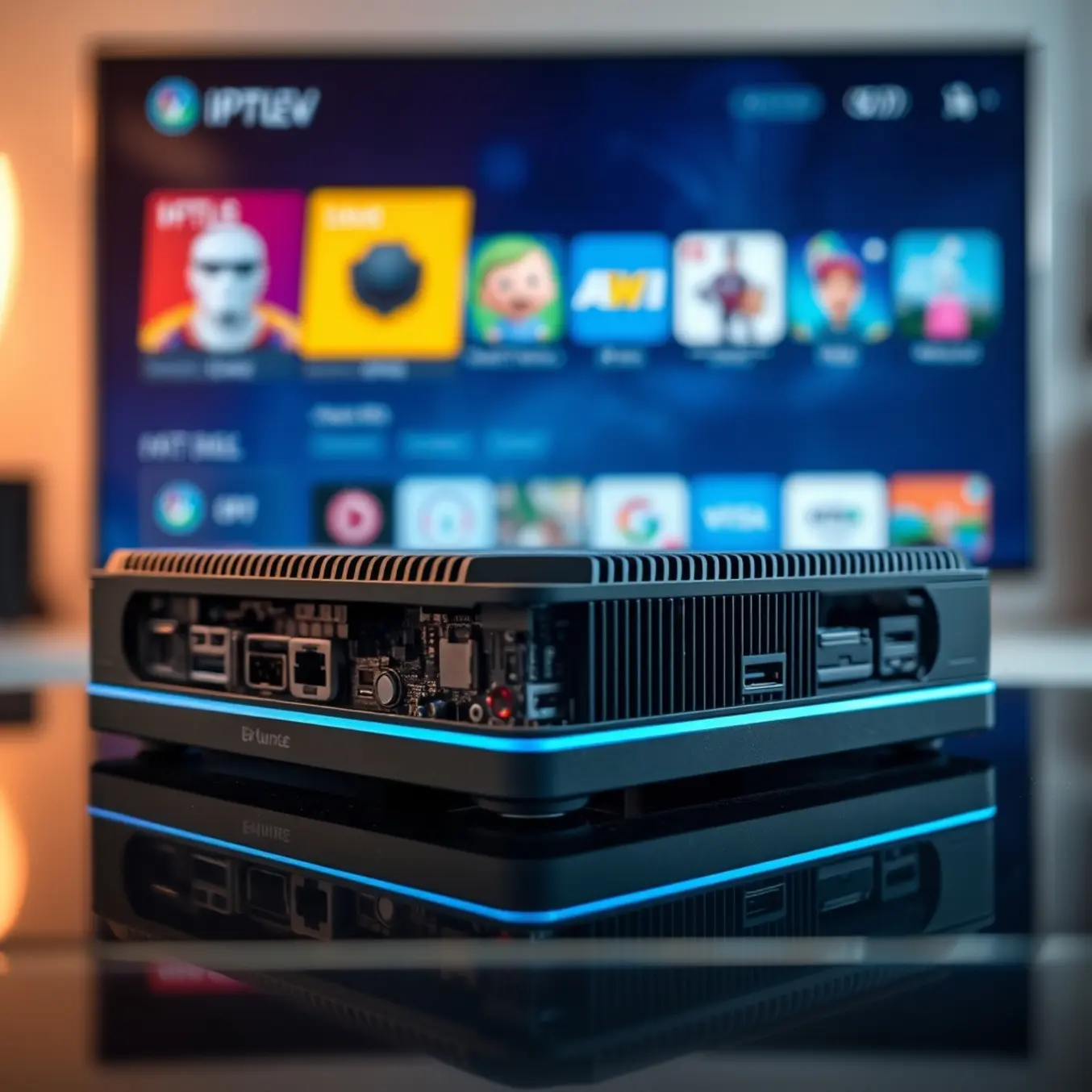
Overclocking refers to the process of increasing your Android TV box’s clock speed beyond the manufacturer’s default settings. Essentially, you’re pushing the processor to run faster than it was originally designed to operate. This technique can significantly boost your device’s performance, which is particularly beneficial for demanding applications like IPTV streaming that require substantial processing power.
When you overclock an Android box, you’re modifying the CPU and GPU frequencies to handle more operations per second. This results in faster app loading times, smoother navigation through menus, and improved video decoding capabilities. For IPTV users, this means reduced buffering, quicker channel switching, and better handling of high-resolution streams, including 4K content that demands substantial processing resources.
Why Overclocking Matters for IPTV Performance
IPTV streaming places unique demands on Android TV boxes that make overclocking particularly relevant. Unlike traditional broadcast television, IPTV delivers content through internet protocol, requiring real-time data processing, video decoding, and network management simultaneously. Standard Android boxes may struggle with these tasks, especially when streaming high-bitrate content or using feature-rich IPTV applications.
Overclocking directly addresses these performance bottlenecks by providing the additional processing power needed for seamless IPTV experiences. The improved CPU performance enables faster decryption of video streams, while the enhanced GPU capabilities ensure smooth rendering of high-definition content. This is especially crucial when using advanced IPTV features like electronic program guides, video-on-demand libraries, and multi-screen viewing options that demand substantial system resources.
Essential Tools and Preparations
Before diving into Android box overclocking, you’ll need several specialized applications to monitor performance and adjust settings. CPU Tuner provides comprehensive control over processor frequencies and voltages, while Kernel Adiutor offers detailed kernel parameter adjustments. For temperature monitoring, CPU Monitor displays real-time thermal data to prevent overheating. Additionally, AIDA64 delivers comprehensive system information and benchmarking capabilities.
These tools work together to give you complete visibility into your device’s performance characteristics. However, always download apps from trusted sources like the Google Play Store or reputable developer websites to avoid malware. Meanwhile, consider optimizing your streaming experience with the best IPTV services for your Android box to complement your performance enhancements.
Safety Measures and Precautions
Overclocking carries inherent risks that require careful safety measures. First, ensure proper ventilation by keeping vents unobstructed and considering additional cooling solutions if necessary. Thermal monitoring is crucial—maintain temperatures below 80°C during stress testing to prevent permanent hardware damage. Implement gradual frequency increases rather than large jumps, testing stability at each step.
Create regular backups of your important data before beginning the overclocking process. Use stable power sources to prevent voltage fluctuations that could damage components. Additionally, familiarize yourself with recovery procedures specific to your device model in case you encounter boot loops or system instability. For enhanced streaming security, explore using VPN for IPTV to protect your privacy while accessing content.
CPU Overclocking for IPTV Performance
CPU overclocking involves increasing your processor’s clock speed beyond its factory settings to enhance performance. For IPTV streaming, this can mean smoother playback, reduced buffering, and better handling of high-resolution content like 4K streams. However, it requires careful monitoring to prevent system instability or damage from excessive heat.
Modern processors from Intel and AMD often include built-in overclocking capabilities, with many motherboards featuring user-friendly BIOS interfaces for adjustments. Before beginning, ensure your system has adequate cooling and a reliable power supply to handle the increased demands.
Step-by-Step Overclocking Process
Access your computer’s BIOS/UEFI interface by pressing the designated key during startup (typically Delete, F2, or F12). Navigate to the CPU settings section, where you’ll find options for adjusting clock speeds and voltages.
Begin with small increments—increase the CPU multiplier by one step (usually 100MHz equivalent) and save your settings. Boot into your operating system and run a stress test for 15-30 minutes while monitoring temperatures. If stable, repeat the process with another small increase.
When you encounter instability or high temperatures (typically above 85°C for most CPUs), you may need to adjust voltage settings slightly. Increase core voltage in minimal increments (0.01-0.025V) until stability returns, but never exceed your CPU’s maximum safe voltage as specified by the manufacturer.
GPU Optimization for Smooth Streaming
Graphics Processing Unit (GPU) optimization plays a crucial role in delivering smooth IPTV streaming experiences. Unlike traditional video streaming, IPTV requires real-time decoding of video streams, which places significant demands on your device’s graphics capabilities. When properly optimized, your GPU can handle video decoding more efficiently, reducing buffering and improving overall playback quality.
Modern GPUs contain dedicated video decoding engines that handle specific codecs like H.264, H.265 (HEVC), and AV1. These specialized processors offload video decoding from your main CPU, resulting in smoother performance and lower power consumption. According to NVIDIA’s video codec SDK documentation, hardware-accelerated decoding can reduce CPU usage by up to 50% while maintaining high-quality video playback.
Practical GPU Settings for Better IPTV Performance
Adjusting specific GPU settings can significantly enhance your IPTV streaming quality. Begin by accessing your graphics control panel (NVIDIA Control Panel, AMD Radeon Settings, or Intel Graphics Command Center) and implementing these optimizations:
- Enable hardware-accelerated GPU scheduling in Windows settings for better resource management
- Set power management mode to “Prefer maximum performance” to prevent clock speed throttling
- Configure texture filtering quality to “High performance” rather than “High quality”
- Disable vertical sync (VSync) for IPTV applications to reduce input lag
- Adjust anti-aliasing settings to application-controlled or off
These adjustments prioritize streaming performance over visual enhancements that are less noticeable in video content. Meanwhile, our comprehensive buffering guide provides additional troubleshooting steps for persistent streaming issues.
Advanced Performance Tweaks
Kernel optimization represents the most advanced approach to Android box overclocking, directly modifying the operating system’s core to unlock superior performance. By adjusting CPU governor settings, you can force your device to maintain higher clock speeds during demanding streaming sessions. Popular governors like “performance” and “interactive” prioritize speed over power saving, ensuring smoother playback of high-bitrate content. Additionally, thermal management tweaks prevent unnecessary throttling when your device heats up during extended use.
Custom kernels specifically designed for Android TV boxes offer even greater control over hardware parameters. These specialized kernels often include optimized drivers and memory management algorithms that significantly boost streaming performance. For instance, adjusting I/O schedulers can prioritize video data access, reducing buffering during channel switching. However, these modifications require technical expertise and carry some risk of system instability if improperly configured.
Network Buffer Optimization Techniques
Network buffer adjustments directly impact how your Android box handles streaming data, particularly for IPTV services where consistent bandwidth is crucial. Increasing TCP buffer sizes allows your device to pre-load more video content, creating a larger cushion against network fluctuations. This technique is especially valuable for users with unstable internet connections, as it can eliminate the frustrating buffering interruptions during live sports events or movie streaming.
Android’s default network settings are designed for general use rather than optimized streaming. By modifying parameters like net.tcp.buffersize, you can tailor your device specifically for high-bitrate video content. Furthermore, adjusting DNS settings to faster alternatives like Google DNS or Cloudflare can reduce initial connection times when loading channels. These network optimizations work particularly well when combined with quality IPTV services that offer stable server connections.
Testing and Benchmarking Your Results
After implementing overclocking changes on your Android TV box, proper testing is crucial to verify both performance gains and system stability. Fortunately, several powerful benchmarking tools are available to measure your device’s capabilities. 3DMark provides comprehensive gaming performance analysis, while Geekbench 6 measures CPU and computational performance with industry-standard metrics. For storage speed assessment, A1 SD Bench evaluates read/write speeds, which directly impact app loading times and streaming performance.
Measuring Real-World Streaming Performance
While synthetic benchmarks provide valuable data, real-world streaming performance matters most for IPTV users. Monitor how your Android box handles high-bitrate 4K content from services like 4K IPTV plans. Pay attention to buffering frequency, channel switching speed, and video quality consistency. Use network monitoring tools to track bandwidth utilization during peak streaming sessions, ensuring your overclocked device maintains stable connections.
Temperature Monitoring and Thermal Management
Overclocking generates additional heat that can compromise long-term device reliability. Implement comprehensive temperature monitoring using apps like HWMonitor or device-specific thermal tools. Ideal operating temperatures should remain below 70°C during extended streaming sessions. If temperatures consistently exceed this threshold, consider adding external cooling solutions or reducing overclocking intensity to prevent thermal throttling and hardware degradation.
Troubleshooting Common Issues
Overheating is one of the most common problems when overclocking Android boxes for IPTV streaming. When you push your device beyond its factory settings, the processor generates additional heat that can lead to performance throttling or even permanent hardware damage. Fortunately, several effective solutions can help manage this issue.
First, consider improving your device’s ventilation. Ensure your Android box has adequate space around it and isn’t placed in an enclosed entertainment center. You can also add external cooling solutions like small USB fans or heat sinks specifically designed for streaming devices. Additionally, reducing ambient room temperature and avoiding direct sunlight on your device can make a significant difference.
Another approach involves software optimization. Lower your overclocking settings slightly until you find a stable balance between performance and temperature. Monitor your device’s temperature using apps like CPU Monitor to track thermal patterns. Cleaning dust from vents and ensuring proper airflow can also prevent overheating during extended streaming sessions with demanding 4K IPTV content.
App Crashes and Freezes
Frequent app crashes and system freezes often indicate instability in your overclocking configuration. When the CPU or GPU runs at unstable frequencies, IPTV applications may crash unexpectedly or become unresponsive. This problem typically stems from pushing hardware beyond its sustainable limits or insufficient voltage to support the increased clock speeds.
Begin troubleshooting by resetting your overclocking app to default settings and gradually increasing parameters in small increments. Test stability after each adjustment by streaming content for extended periods. If crashes persist, clear the cache and data of your IPTV application, as corrupted files can exacerbate instability issues. Updating both your IPTV app and device firmware to the latest versions often resolves compatibility problems.
Maintenance and Best Practices
Maintaining optimal performance after overclocking requires consistent monitoring of key metrics. Temperature tracking is particularly crucial, as excessive heat can degrade components over time. Applications like CPU Monitor provide real-time temperature readings, allowing you to identify potential overheating before it causes permanent damage.
Performance benchmarks should be conducted regularly using tools like Geekbench or Antutu Benchmark. These apps help verify that your overclock settings are delivering the expected performance gains without compromising system stability. Additionally, monitoring app performance and streaming quality through your IPTV service can indicate whether your settings need adjustment.
Regular Maintenance Routines
Establishing consistent maintenance habits ensures your overclocked Android box remains stable and responsive. Weekly tasks should include cache clearing, temporary file removal, and storage optimization. Monthly maintenance should involve more comprehensive system checks and potential setting recalibrations.
Software updates require special attention in overclocked environments. Before applying system updates, consider temporarily reverting to default clock speeds to prevent compatibility issues. Regular maintenance not only preserves performance but also helps identify potential issues before they escalate into serious problems.
Long-Term Health Considerations
Sustainable overclocking requires balancing performance gains with hardware preservation. Component degradation occurs faster when devices consistently operate beyond factory specifications. Implementing conservative overclock settings with occasional returns to default values can help mitigate long-term wear.
Power supply quality directly impacts stability and component lifespan. Use the original power adapter or high-quality replacements that meet manufacturer specifications. Power fluctuations can cause system instability and potentially damage sensitive components in overclocked devices.
Sources
- All In One TV – Unlock the Future of Entertainment with Our 4K IPTV Plans
- All In One TV – The Best IPTV Apps for Android: Your Ultimate Guide to Streaming
- All In One TV – The Best IPTV Services for Your Android Box: Unlock Superior Streaming Today
- All In One TV – How to Fix Buffering on IPTV: A Comprehensive Guide
- All In One TV – How Much Internet Speed Do You Need for IPTV Streaming?
- All In One TV – How to Use VPN for IPTV: A Comprehensive Guide to Unlocking Global Streaming
- All In One TV – IPTV Smarters Pro: Setup, Subscription and Best Settings
- All In One TV – TiviMate IPTV Player: Setup, Subscription and Best Settings for Optimal Streaming
- AMD – Video Acceleration Technology
- Android Central – Best Benchmark Apps for Android
- Android Authority – Best Android Benchmark Apps
- Android Authority – How to Cool Your Android Phone
- CPUID – CPU-Z System Monitoring Software
- How-To Geek – How to Keep Your Android Device Running Smoothly
- HWiNFO – System Information and Monitoring
- Intel – GPU Memory Management Optimization Guide
- NVIDIA – Video Codec SDK Documentation
- Tech Advisor – Best Hardware Monitoring Software
- Tech Advisor – How to Overclock Android Device
-
Categories: IPTV Devices & Hardware