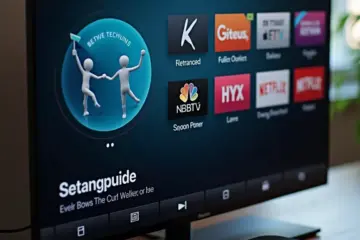
TiviMate IPTV Player: Setup, Subscription, And Best Settings For Optimal Streaming

Introduction to TiviMate: The Ultimate IPTV Experience
TiviMate has emerged as a premier IPTV player that revolutionizes how users experience internet television. Unlike basic IPTV applications, TiviMate offers a sophisticated interface that closely resembles traditional cable or satellite TV systems. This familiarity makes it incredibly user-friendly while providing advanced features that cater to modern streaming needs.
Premium User Experience
The application’s clean, intuitive design sets it apart from competitors. Users enjoy seamless navigation through channels and categories, with customizable layouts that adapt to personal preferences. Moreover, TiviMate supports multiple playlist management, allowing users to organize content from different providers efficiently.
Advanced Features That Define Excellence
TiviMate Premium unlocks powerful capabilities that transform the IPTV experience. These include comprehensive Electronic Program Guide (EPG) support with detailed program information, recording functionality for live TV, and multi-screen viewing options. The application also offers extensive customization of channel lists, favorites management, and parental controls.
Cross-Platform Compatibility
One of TiviMate’s strongest advantages is its compatibility with various Android-based devices. Whether you’re using an Android TV box, Firestick, or other streaming devices, TiviMate delivers consistent performance. This flexibility makes it an ideal choice for users seeking reliable IPTV solutions across different platforms.
Why Users Prefer TiviMate
The combination of professional-grade features and user-friendly design makes TiviMate a preferred choice in the competitive IPTV landscape. Its ability to handle multiple playlists simultaneously, coupled with robust EPG integration, provides users with a comprehensive entertainment solution that rivals traditional television services while offering greater flexibility and customization options.
Getting Started: Installation & Initial Setup
TiviMate offers versatile installation options across various streaming platforms. For Android TV devices, you can download the app directly from the Google Play Store. Simply search for “TiviMate” in the store and install the official version. However, many users prefer the premium features available through the companion app method.
Downloading TiviMate on Different Devices
Firestick users need to enable installation from unknown sources first. Navigate to Settings > My Fire TV > Developer Options and toggle “Apps from Unknown Sources” to ON. Then download the Downloader app from the Amazon Appstore to sideload TiviMate using the official APK file.
Step-by-Step Installation Process
Android TV Installation:
- Open Google Play Store on your device
- Search for “TiviMate IPTV Player”
- Click Install and wait for completion
- Launch the app once installed
Firestick Installation:
- Enable unknown sources in Developer Options
- Install Downloader app from Amazon Appstore
- Open Downloader and enter the official TiviMate APK URL
- Download and install the APK file
- Launch TiviMate from your apps list
Essential Initial Configuration
After successful installation, TiviMate requires proper setup to function optimally. First-time users should ensure they have their IPTV subscription details ready, including M3U playlist URLs or Xtream Codes API information. The app will prompt you to add your playlist during the initial setup wizard.
Configure essential permissions including storage access for EPG data and network access for streaming content. For optimal performance, consider setting up your VPN connection before adding playlists to ensure secure and stable streaming.
First-Time Setup Tips
Begin by organizing your channel groups and favorites during the initial setup. TiviMate’s premium version offers advanced features like multiple playlist support and custom EPG sources. For users seeking comprehensive IPTV solutions, explore our All-in-One TV subscription plans that work seamlessly with TiviMate.
Remember to backup your configuration once you’ve customized your settings. This ensures you can quickly restore your preferred setup if you need to reinstall the app or switch devices. The backup feature is particularly valuable for maintaining your channel organization and EPG preferences across multiple installations.
Subscription Guide: Premium Features Unlocked
The TiviMate Companion app serves as the official subscription management tool for TiviMate IPTV player. This separate application handles all premium account activations and subscription renewals, providing a streamlined approach to managing your TiviMate experience. Unlike the main TiviMate player, the Companion app focuses exclusively on account management and subscription services.
Free vs Premium: Feature Comparison
Free Version Limitations
The free version of TiviMate offers basic functionality but comes with significant restrictions. Users can only add one playlist, access limited customization options, and experience frequent ads. Additionally, the free version lacks advanced features like recording capabilities and multi-screen support.
Premium Features Unlocked
Upgrading to TiviMate Premium unlocks a comprehensive suite of advanced features:
- Multiple Playlist Support: Add unlimited IPTV playlists and organize them efficiently
- Advanced Recording: Schedule and manage recordings of your favorite shows
- Multi-Screen Viewing: Watch multiple channels simultaneously with picture-in-picture
- Customizable Interface: Personalize the TV guide layout, colors, and themes
- Parental Controls: Set up PIN protection for specific channels or categories
- Catch-up TV: Access previously aired content with extended playback options
- External Player Support: Integrate with VLC and other media players
- No Advertisements: Enjoy uninterrupted streaming without commercial interruptions
Pricing and Subscription Options
TiviMate Premium offers flexible subscription plans to suit different user needs. The pricing structure typically includes:
- Annual Subscription: Most cost-effective option with significant savings
- Lifetime Access: One-time payment for permanent premium access
- Multiple Device Support: Options for single devices or multiple installations
For detailed pricing information and current subscription rates, check our comprehensive TiviMate Premium Account Guide which covers all subscription aspects.
Activation Process
Activating TiviMate Premium requires a straightforward process:
- Download TiviMate Companion App: Available on the Google Play Store
- Create Account: Register with your email address
- Choose Subscription: Select your preferred plan and payment method
- Activate in TiviMate: Enter your credentials in the main app’s settings
- Enjoy Premium Features: All restrictions are immediately lifted
Benefits of Premium Upgrade
Upgrading to TiviMate Premium transforms your IPTV experience with several key advantages:
Enhanced User Experience
The premium version eliminates all advertisements and provides a cleaner, more professional interface. Users benefit from smoother navigation and faster channel switching.
Advanced Functionality
Premium features like recording capabilities and multi-screen viewing significantly expand your entertainment options. These tools allow you to create a personalized TV experience that matches your viewing preferences.
Better Organization
With unlimited playlist support and advanced categorization, you can organize thousands of channels efficiently. This makes finding your favorite content quicker and more intuitive.
Future Updates
Premium subscribers receive regular updates with new features and improvements, ensuring your app stays current with the latest IPTV technology developments.
For those considering IPTV services to use with TiviMate, explore our guide on IPTV Subscription Plans to find the perfect match for your streaming needs.
Playlist Management: Adding Your IPTV Services
M3U playlists and Xtream Codes API represent two primary methods for accessing IPTV services. M3U files contain text-based lists of streaming URLs, while Xtream Codes provides a more dynamic API-based approach for real-time channel management. Both methods offer distinct advantages depending on your streaming preferences and device compatibility.
Setting Up M3U Playlists
Obtaining Your M3U URL
Your IPTV provider typically supplies an M3U URL or downloadable playlist file. This URL contains all your channel information in a structured format. Always ensure you receive this from legitimate providers to maintain service quality and security.
Adding M3U Playlist to IPTV Apps
Most IPTV applications follow similar setup procedures:
- Open your preferred IPTV player (IPTV Smarters Pro, TiviMate, etc.)
- Navigate to playlist settings or add new playlist option
- Enter your M3U URL provided by your service
- Configure playlist name for easy identification
- Save and load the playlist to populate channels
For detailed app-specific instructions, check our IPTV Smarters Pro setup guide and TiviMate premium guide.
Configuring Xtream Codes API
Understanding Xtream Codes Parameters
Xstream Codes requires four essential pieces of information:
- Portal URL: Your provider’s server address
- Username: Your account username
- Password: Your account password
- Port: Typically port 80 or 8080
Xtream Codes Setup Process
- Select Xtream Codes/API as your connection method
- Enter portal URL (without http:// prefix in most cases)
- Input username and password credentials
- Configure port settings as specified by provider
- Test connection to verify successful authentication
This method often provides better EPG (Electronic Program Guide) integration and faster channel loading compared to M3U playlists.
Managing Multiple IPTV Providers
Organizing Multiple Services
Running multiple IPTV subscriptions simultaneously requires strategic organization:
- Use descriptive names for each playlist (ProviderName-ServiceType)
- Color-code playlists in apps that support visual organization
- Create favorite lists across different providers
- Set priority order for channel conflict resolution
Best Practices for Multi-Provider Setup
- Test each service individually before combining
- Monitor performance to identify the most reliable provider
- Use VPN services when accessing geographically restricted content
- Regularly update playlists to maintain service quality
For VPN setup assistance, refer to our VPN for IPTV guide.
Advanced Playlist Management
Custom Playlist Creation
Advanced users can create custom M3U playlists by:
- Editing existing playlists to remove unwanted channels
- Combining channels from multiple providers
- Adding custom logos and metadata
- Creating thematic groups (Sports, Movies, News)
EPG Integration
Electronic Program Guides enhance your viewing experience:
- Source reliable EPG URLs from your provider
- Configure EPG offset for timezone adjustments
- Map channels to EPG data for accurate program information
- Update EPG regularly to maintain current listings
Troubleshooting Common Issues
Playlist Loading Problems
- Verify URL accuracy and check for typos
- Test connection with different networks
- Clear app cache and restart application
- Contact provider for updated playlist URLs
Channel Buffering Solutions
- Check internet speed meets minimum requirements
- Reduce concurrent streams if experiencing lag
- Use wired connection instead of Wi-Fi when possible
- Adjust buffer settings in your IPTV player
For comprehensive buffering solutions, explore our buffering fix guide.
Security and Maintenance
Regular Updates
- Update playlists monthly to maintain channel availability
- Backup custom configurations to avoid data loss
- Monitor service performance and switch providers if needed
- Keep IPTV apps updated for security patches
Security Considerations
- Use reputable providers to avoid malicious content
- Enable security features in your IPTV applications
- Avoid sharing credentials across multiple devices
- Monitor account activity for unauthorized access
Proper playlist management ensures you maximize your IPTV investment while maintaining an organized, reliable streaming experience across multiple services and devices.
Essential Settings for Optimal Performance
Choosing the right video codec significantly impacts your streaming quality and bandwidth usage. H.264 remains the most compatible option across devices, while H.265 (HEVC) offers superior compression for 4K content. For optimal performance, select H.265 when available, especially for high-resolution streams. However, ensure your device supports hardware decoding for smooth playback. Many modern IPTV services automatically select the best codec based on your device capabilities.
Audio Codec Configuration
Audio quality often gets overlooked but contributes significantly to the viewing experience. AAC (Advanced Audio Coding) provides excellent quality at lower bitrates, while AC3 (Dolby Digital) offers surround sound capabilities. For most users, AAC delivers the best balance of quality and compatibility. Ensure your audio settings match your sound system – stereo for basic setups and 5.1 surround for home theater systems.
Buffer Settings Adjustment
Buffer settings play a crucial role in preventing interruptions during streaming. Most IPTV apps offer automatic buffer management, but manual adjustments can help in poor network conditions. Increase buffer size to 10-15 seconds for stable connections, or reduce it to 5-8 seconds for faster channel switching. Remember that larger buffers require more device memory but provide smoother playback during network fluctuations.
EPG Setup and Optimization
Electronic Program Guide (EPG) configuration enhances your viewing experience by providing schedule information. Ensure your EPG source is reliable and updates regularly. Most IPTV providers offer EPG URLs that automatically populate channel information. For better performance, schedule EPG updates during off-peak hours and limit the number of days loaded to conserve device resources. A properly configured EPG makes channel navigation intuitive and helps you plan your viewing schedule.
Parental Controls Configuration
Setting up parental controls protects family viewing while maintaining accessibility. Most IPTV applications allow you to:
- Set PIN codes for specific channels or categories
- Create user profiles with restricted content access
- Block channels based on ratings or content type
- Set viewing time limits for children
Configure these settings during initial setup to ensure appropriate content filtering. Regular review and adjustment of parental controls maintain security as viewing habits change.