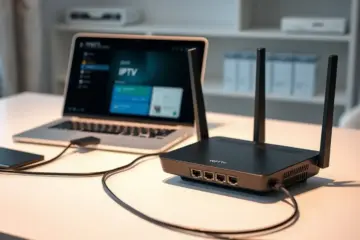
The Ultimate Guide To IPTV Troubleshooting On Mac Devices

Buffering Issues on Mac
Buffering on Mac devices often stems from internet connectivity problems or insufficient bandwidth. For optimal IPTV streaming, your Mac requires a stable connection with adequate speed. Our guide to internet speed requirements for IPTV details the minimum and recommended speeds for different video qualities. Additionally, Wi-Fi interference is a common culprit, especially in crowded network environments.
To troubleshoot, first test your internet speed using online tools. If speeds are low, try moving closer to your router or connecting via Ethernet cable. Furthermore, closing bandwidth-intensive applications running in the background can free up resources for smooth streaming. For a deeper dive into resolving this specific issue, our comprehensive guide on fixing IPTV buffering offers extensive solutions.
Audio and Video Sync Problems
Audio sync issues, where the sound does not match the video, are particularly frustrating. On macOS, this can be caused by outdated audio drivers, application-specific settings, or even the video file’s encoding. A simple first step is to quit and restart your IPTV application, as this can reset the audio processing.
If the problem persists, check for any available updates for both your IPTV app and macOS. Apple frequently releases updates that improve media playback compatibility. You can also try using a different media player, such as VLC, which has robust audio delay correction features built-in. Sometimes, the issue is server-side; if only one channel is affected, the problem will likely resolve itself.
Channel Loading and Failure Errors
When channels fail to load or display error messages on your Mac, the cause is often related to the stream source or your subscription. First, verify that your IPTV subscription is active and that you have a stable internet connection. A quick test is to try accessing a different channel; if it works, the issue is isolated to a specific stream.
In many cases, using a VPN can resolve channel access problems, especially for geo-restricted content. Our guide on using a VPN for IPTV explains how it can provide a more stable and secure connection to the service’s servers. If channels consistently fail, the problem may be with your M3U playlist or portal URL. Double-check the credentials you entered in your IPTV app.
Application Crashes and Freezes
IPTV applications on Mac can sometimes crash or freeze, disrupting your viewing experience. This is often due to software conflicts or insufficient system resources. Ensure your Mac meets the application’s minimum system requirements. You can check this by clicking the Apple menu > About This Mac.
Clearing the application’s cache can often resolve performance issues and freezes. Look for a “Clear Cache” option within the app’s settings menu. If crashes continue, try uninstalling and reinstalling the application to ensure you have a clean, updated version. Keeping your macOS updated also ensures you have the latest security and compatibility patches for all applications.
Wi-Fi vs Ethernet: Which Is Better for IPTV Streaming?
When setting up your IPTV service, your network connection choice significantly impacts streaming quality. While Wi-Fi offers convenience, Ethernet provides superior reliability for uninterrupted viewing.
Ethernet connections deliver consistent speeds with minimal latency, making them ideal for high-definition and 4K streaming. According to network performance tests, wired connections typically experience 30-50% less latency than wireless alternatives. This stability becomes crucial when streaming live sports or premium content where buffering can ruin the experience.
Meanwhile, Wi-Fi’s performance depends heavily on your router’s location, interference from other devices, and network congestion. However, modern Wi-Fi 6 routers can provide excellent streaming performance when properly configured. For optimal results with wireless connections, position your router centrally and minimize physical obstructions.
Router Settings for Enhanced IPTV Performance
Optimizing your router configuration can dramatically improve IPTV streaming quality. Begin by accessing your router’s administration panel and implementing these key adjustments.
First, enable Quality of Service (QoS) settings to prioritize streaming traffic. This feature ensures your IPTV data receives bandwidth priority over other internet activities. Most modern routers allow you to assign higher priority to specific devices or applications.
Additionally, consider changing your Wi-Fi channel to reduce interference, especially in densely populated areas. Tools like WiFi Analyzer can help identify the least congested channels. For dual-band routers, connect your streaming device to the 5GHz band for faster speeds and reduced interference.
DNS Configuration for Faster Streaming
Your Domain Name System (DNS) settings play a crucial role in how quickly your device connects to IPTV servers. Internet Service Providers often use slower DNS servers that can delay content loading.
Switching to faster public DNS services like Google DNS (8.8.8.8) or Cloudflare DNS (1.1.1.1) can reduce connection times significantly. These services typically resolve domain names faster, leading to quicker channel loading and reduced buffering.
To change DNS settings, access your network adapter properties or router administration panel. For comprehensive guidance on optimizing your entire setup, explore our complete guide to fixing IPTV buffering issues.
Advanced Network Optimization Techniques
Beyond basic settings, several advanced techniques can further enhance your IPTV experience. Consider implementing these strategies for premium streaming performance.
Port forwarding specific ports used by your IPTV service can improve connection stability. Meanwhile, setting up a separate guest network for other household devices reduces competition for bandwidth. Furthermore, regularly updating your router’s firmware ensures you benefit from the latest performance improvements and security patches.
For households with multiple heavy internet users, upgrading to a mesh Wi-Fi system or powerline adapters might provide the consistent performance needed for flawless 4K streaming. Remember that your overall internet speed requirements should accommodate both your IPTV service and other simultaneous internet activities.
Resolving Mac IPTV App Crashes
App crashes on Mac can disrupt your streaming experience, but most issues stem from common compatibility problems. First, ensure your macOS version supports your IPTV application. Many crashes occur when using outdated apps on newer macOS versions. Check the developer’s website for compatibility information and update your app if available.
Clearing cache files often resolves persistent crashing issues. IPTV apps accumulate temporary data that can become corrupted over time. Navigate to your application’s settings menu to find the cache clearing option, or manually delete cache folders from your Library folder. Additionally, try reinstalling the application completely to replace any damaged files.
Conflicts with other applications, particularly security software or VPNs, can cause instability. Temporarily disable your VPN or firewall to test if the crashing stops. If this resolves the issue, adjust your security settings to create exceptions for your IPTV application. For comprehensive VPN troubleshooting guidance, refer to our complete VPN setup guide.
Fixing Installation Problems on macOS
Installation failures frequently occur due to macOS security restrictions. When downloading IPTV applications from outside the App Store, you may encounter “unidentified developer” warnings. To bypass this, go to System Preferences > Security & Privacy and click “Open Anyway” for the blocked application.
Insufficient storage space represents another common installation obstacle. IPTV applications and their cache requirements can demand significant disk space. Verify you have at least 2-3GB of available storage before installation. Clear temporary files and unneeded applications if space is limited.
Gatekeeper settings might prevent third-party applications from installing properly. You can temporarily disable these protections by entering “sudo spctl –master-disable” in Terminal, though re-enable them afterward for security. Alternatively, right-click the application file and select “Open” instead of double-clicking to bypass initial Gatekeeper checks.
Managing Permission Issues Effectively
Permission problems typically manifest as playback errors or recording failures. Your IPTV application requires access to your network, storage, and sometimes microphone or camera for certain features. Navigate to System Preferences > Security & Privacy > Privacy to review and grant necessary permissions.
Network access permissions are crucial for streaming content. If your IPTV app cannot connect to servers, check your firewall settings. macOS may block the application’s outgoing connections. Add your IPTV app to the allowed list in Firewall Options to resolve connectivity issues.
Storage permissions become important when applications need to save recordings or cache data. If you experience recording failures, ensure the application has write access to your designated folders. You may need to grant Full Disk Access in Security & Privacy settings for comprehensive functionality.
Advanced Troubleshooting Techniques
When basic fixes fail, more advanced approaches can identify underlying issues. Activity Monitor provides insights into application performance and resource usage. Check if your IPTV app is consuming excessive CPU or memory, which could indicate deeper problems. High resource usage might suggest the need for a more powerful Mac or application optimization.
Console logs offer detailed error information that can pinpoint specific causes of crashes. Open Console from Applications > Utilities to review system messages. Look for entries timestamped to when crashes occurred, as these often contain valuable diagnostic information. Share these details with customer support if problems persist.
Network diagnostics help identify connectivity issues affecting stream quality. Use Network Utility to test your connection speed and stability. For optimal IPTV performance, ensure you meet the recommended internet speed requirements. Consider using Ethernet instead of Wi-Fi for more reliable connections, especially for high-definition content.
Preventative Maintenance Strategies
Regular maintenance prevents many common IPTV issues before they disrupt your viewing. Keep both your macOS and IPTV applications updated to the latest versions. Developers frequently release patches addressing stability problems and security vulnerabilities. Enable automatic updates when available to ensure you receive improvements promptly.
Monitor your system’s health to maintain optimal performance. Regularly clear application caches and temporary files to prevent accumulation of corrupted data. Restart your Mac periodically to clear system resources and resolve memory leaks that might affect IPTV performance.
For persistent technical issues, our comprehensive customer support guide provides additional troubleshooting resources and contact information. Many problems have simple solutions once properly diagnosed, so methodical troubleshooting typically resolves even the most frustrating IPTV issues on Mac.
Optimize Your Video Resolution for Smoother Streaming
Streaming quality issues often stem from improper resolution settings. Many users automatically select the highest available resolution, but this can cause buffering when your internet connection can’t keep up. For optimal performance, match your resolution to your available bandwidth.
Most IPTV services offer multiple resolution options, from 480p to 4K Ultra HD. According to streaming experts, you need approximately 5 Mbps for 720p HD, 8 Mbps for 1080p Full HD, and 25 Mbps for 4K streaming [Source: HighSpeedInternet.com]. Check your internet speed using online tools and adjust your resolution accordingly.
Additionally, many modern streaming apps include automatic resolution adjustment features that dynamically change quality based on your network conditions. Enabling this feature can significantly reduce buffering during peak usage times when bandwidth may be limited.
Audio Codec Adjustments for Better Performance
Audio settings can impact streaming quality more than many users realize. Different audio codecs require varying amounts of bandwidth, and choosing the right one can free up resources for video streaming. Advanced audio codecs like AAC and AC3 provide excellent quality with efficient compression.
Many IPTV players allow you to select preferred audio codecs in their settings. Opt for codecs that balance quality and efficiency, especially if you’re experiencing consistent buffering. According to audio engineering research, AAC typically offers better compression efficiency than older MP3 formats while maintaining similar quality [Source: SoundGuys].
If you’re using external audio systems or soundbars, ensure your device’s audio output settings match your equipment’s capabilities. Mismatched settings can cause decoding delays that affect synchronization between audio and video.
Enable Hardware Acceleration for Better Performance
Hardware acceleration uses your device’s dedicated processing components to handle video decoding, reducing the load on your main processor. This technology can dramatically improve streaming performance, especially on older devices or when streaming high-resolution content.
Most modern streaming devices and applications support hardware acceleration. On Android TV boxes and Firestick devices, you can typically find this option in the developer settings or within specific IPTV apps like Tivimate or IPTV Smarters Pro. Enabling this feature allows your device’s GPU to handle video decoding more efficiently than software-based decoding.
Research from streaming technology experts confirms that hardware-accelerated video decoding can reduce CPU usage by up to 80% compared to software decoding [Source: Streaming Media Magazine]. This efficiency translates to smoother playback, reduced buffering, and better overall performance, particularly when streaming 4K content or using multiple applications simultaneously.
Advanced Network Optimization Techniques
Beyond resolution and codec settings, network configuration plays a crucial role in streaming quality. Using a wired Ethernet connection instead of Wi-Fi provides more stable bandwidth, especially for 4K streaming. If Wi-Fi is your only option, position your streaming device closer to the router or consider a mesh network system for better coverage.
Quality of Service (QoS) settings on your router can prioritize streaming traffic over other internet activities. This ensures that your IPTV stream receives the necessary bandwidth even when other devices are downloading files or browsing the web. Many modern routers include gaming or streaming modes that automatically optimize for real-time media.
For additional troubleshooting strategies, check out our comprehensive guide on how to fix buffering on IPTV, which covers advanced techniques for identifying and resolving common streaming issues.
Device-Specific Optimization Strategies
Different streaming devices require unique optimization approaches. For Firestick users, ensuring adequate storage space and regularly clearing cache can prevent performance degradation. Our Firestick optimization guide provides device-specific tips for maintaining optimal performance.
Android TV boxes benefit from regular system updates and optimized IPTV applications. Choosing lightweight players that efficiently utilize hardware resources can make a significant difference in streaming stability. Similarly, Smart TV users should ensure their television’s firmware is current, as manufacturers frequently release updates that improve streaming performance and compatibility.
By implementing these resolution, audio, and hardware acceleration optimizations, you can transform your streaming experience from frustrating to flawless. Remember that the optimal settings may vary based on your specific setup, so don’t hesitate to experiment with different configurations to find what works best for your viewing environment.
Terminal Commands for Network Diagnostics
When IPTV streaming issues occur on your Mac, Terminal commands provide powerful diagnostic capabilities that go beyond standard troubleshooting. The ping command helps verify connectivity to IPTV servers by testing packet transmission and response times. For example, ping your-iptv-server.com reveals whether the server is reachable and measures latency, which is crucial for smooth streaming.
Additionally, the traceroute command maps the network path between your Mac and the IPTV service, identifying potential bottlenecks along the way. Running traceroute your-iptv-provider.com displays each hop your data takes, helping pinpoint where delays or failures occur. This is particularly valuable when experiencing buffering despite having adequate internet speed.
Network statistics commands like netstat and lsof -i reveal active connections and which applications are using network resources. These tools help identify if other applications are consuming bandwidth that should be allocated to your IPTV streaming. According to Apple’s Terminal documentation, these commands provide real-time insight into network performance and resource allocation.
Managing Firewall Conflicts
macOS’s built-in firewall can sometimes interfere with IPTV applications by blocking necessary network ports. To check your firewall settings, navigate to System Preferences > Security & Privacy > Firewall. If the firewall is enabled, you may need to create exceptions for your IPTV application. Click “Firewall Options” and add your IPTV player to the list of allowed applications.
For more granular control, you can use Terminal commands to manage specific ports. The command sudo pfctl -ef /etc/pf.conf activates the packet filter firewall, while custom