The Ultimate Guide To Dual Monitor IPTV Setup
Enhanced Productivity with Dual Monitor IPTV
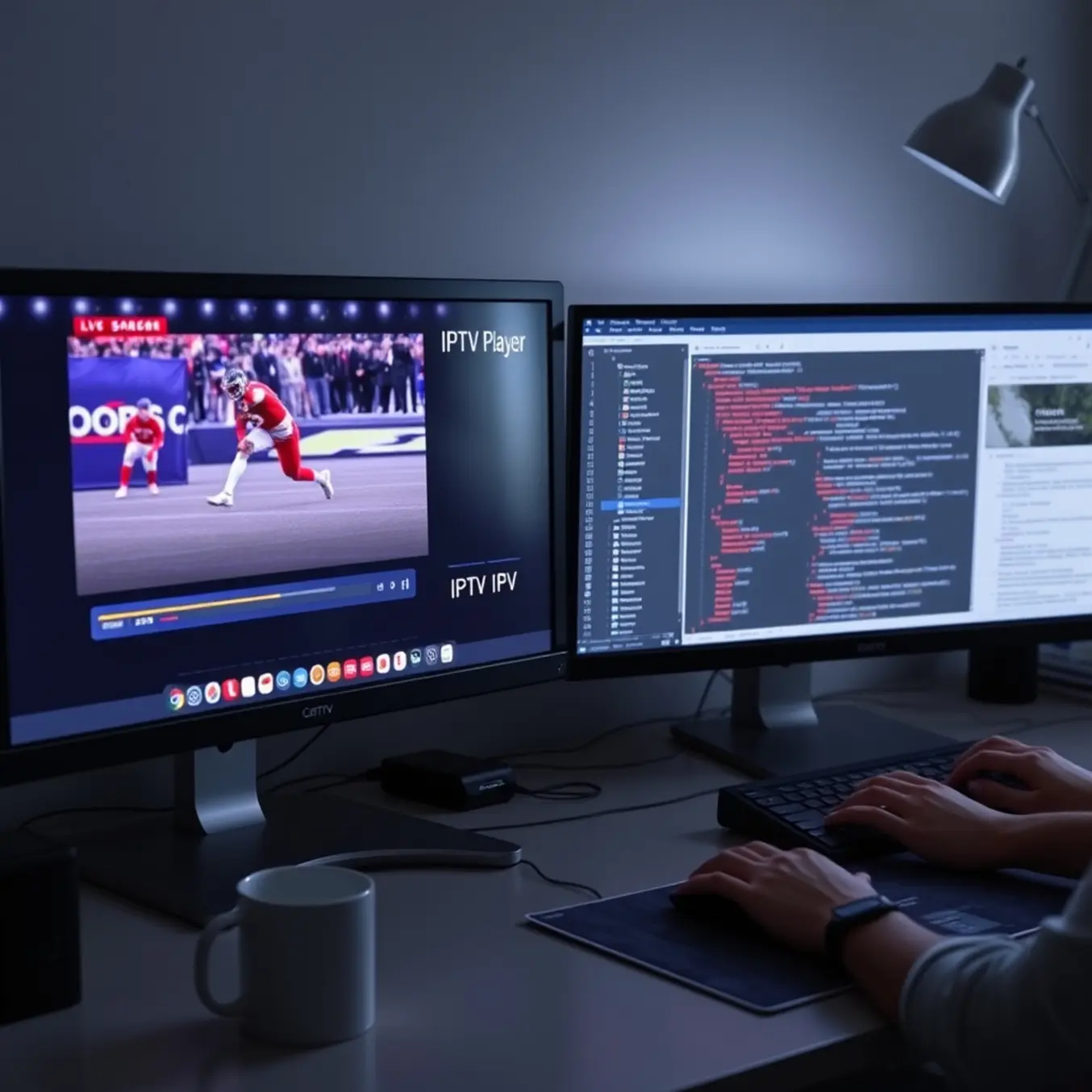
Using dual monitors for IPTV streaming significantly boosts productivity by allowing simultaneous viewing and task management. Research from Nielsen Norman Group demonstrates that dual monitor setups can increase productivity by 20-30% compared to single-screen configurations. This setup enables users to stream live news or sports on one screen while working on documents, emails, or creative projects on the other.
For professionals working from home, dual monitor IPTV configurations provide seamless access to business news channels, market updates, or training content without interrupting workflow. The ability to monitor multiple information streams simultaneously reduces context switching and maintains focus, making it particularly valuable for financial analysts, content creators, and remote workers who need to stay informed while maintaining productivity.
Entertainment Use Cases for Multi-Screen Streaming
Dual monitor setups revolutionize entertainment consumption by enabling sophisticated viewing experiences. Sports enthusiasts can watch multiple games simultaneously, while movie lovers can stream different content on each screen for family viewing preferences. This configuration proves especially useful during major sporting events like the Super Bowl or World Cup, where viewers can follow the main broadcast on one screen while monitoring supplementary coverage, statistics, or social media reactions on the secondary display.
Gaming and streaming combinations become seamless with dual monitors, allowing users to play games on one screen while streaming entertainment content on the other. This setup also supports social viewing experiences, where household members can enjoy different programming without conflicts. For those interested in optimizing their entertainment setup, our guide to the best IPTV services provides comprehensive device compatibility information.
Technical Benefits of Multi-Screen IPTV Streaming
Modern IPTV services are engineered to support multi-screen streaming without compromising quality. According to streaming technology experts at Streaming Media Magazine, contemporary IPTV platforms utilize adaptive bitrate streaming and efficient bandwidth management to deliver stable performance across multiple displays. This technical capability ensures that users can enjoy high-definition content on both screens simultaneously.
The technical advantages extend to network efficiency, as many IPTV providers optimize their services for multi-device households. Advanced codec technology and server-side processing reduce the bandwidth requirements for dual-stream setups, making it feasible for users with standard internet connections. For optimal performance, ensure your internet speed meets the requirements outlined in our internet speed guide for IPTV streaming.
Setup and Configuration Considerations
Implementing a dual monitor IPTV setup requires proper hardware configuration and software optimization. Most modern graphics cards support extended display functionality, while IPTV applications like IPTV Smarters Pro offer multi-instance capabilities for running separate streams on different screens. The setup process typically involves configuring display settings in your operating system and ensuring your IPTV subscription supports concurrent streams.
When selecting monitors for dual-screen IPTV, consider factors like resolution compatibility, response time, and color accuracy to enhance viewing quality. Many users prefer matching monitor models for consistent visual performance, though mixed setups can work effectively with proper calibration. For comprehensive setup assistance, our All-in-One TV setup guide provides detailed configuration instructions.
Furthermore, dual monitor configurations support advanced features like picture-in-picture modes and customized window arrangements. This flexibility allows users to prioritize specific content while maintaining visibility of secondary streams, creating a personalized viewing environment that adapts to changing entertainment needs throughout the day.
Monitor Specifications for Dual Screen IPTV
Choosing the right monitors is crucial for an optimal dual-screen IPTV setup. For the best viewing experience, select displays with at least 1080p resolution, though 4K monitors provide superior clarity for high-definition content. Consider monitors with IPS panels for wider viewing angles and better color accuracy, which is essential when watching from different positions.
Response time is another critical factor – aim for 5ms or lower to prevent motion blur during fast-paced sports or action scenes. Additionally, look for monitors with slim bezels to create a seamless viewing experience between screens. Many modern monitors also include blue light reduction technology, which helps reduce eye strain during extended viewing sessions.
Graphics Card Requirements
Your graphics card plays a vital role in supporting dual monitor IPTV streaming. Most modern graphics cards support multiple display outputs, but ensure your card has at least 2GB of dedicated VRAM for smooth 1080p streaming across two screens. For 4K content, consider cards with 4GB or more VRAM to handle the increased bandwidth demands.
NVIDIA’s GTX 1650 or AMD’s RX 550 series provide excellent performance for dual monitor setups without breaking the bank. These cards support hardware acceleration for video decoding, which reduces CPU usage during streaming. If you plan to use picture-in-picture features or record content while watching, consider upgrading to a more powerful card like the RTX 3060 or RX 6600.
Connectivity Options and Cables
Proper connectivity ensures stable video transmission between your streaming device and monitors. HDMI 2.0 cables are recommended for 4K content at 60Hz, while DisplayPort offers even higher bandwidth for premium setups. Always use high-quality, certified cables to prevent signal degradation that can cause flickering or color issues.
Many modern streaming devices and computers include multiple output ports, but you may need adapters for compatibility. For instance, if your device only has HDMI ports but your monitor requires DisplayPort, quality adapters maintain signal integrity. USB-C ports with DisplayPort Alt Mode provide another versatile connectivity option, especially for laptop-based setups.
Recommended Hardware Setups
For basic dual monitor IPTV streaming, a setup with two 24-inch 1080p monitors paired with an entry-level graphics card provides excellent value. Position the monitors at eye level with approximately 20-30 degrees of tilt toward your viewing position. This arrangement reduces neck strain and creates an immersive experience.
Enthusiasts seeking premium performance should consider curved 27-inch 1440p monitors with high refresh rates. These displays offer more screen real estate for multitasking while maintaining excellent picture quality. Pair them with a mid-range graphics card and ensure your internet connection meets the bandwidth requirements for uninterrupted streaming.
Audio Considerations
While video quality receives most attention, audio plays an equally important role in your IPTV experience. Most monitors include built-in speakers, but their quality is often limited. For superior sound, connect external speakers or a soundbar to your streaming device. Many modern setups support Bluetooth audio, allowing wireless connection to headphones or speakers.
If you’re using a computer for streaming, consider a dedicated sound card or USB DAC for improved audio processing. This becomes particularly important when watching content with surround sound formats. For those using Firestick or Android TV devices, ensure your audio equipment connects properly through HDMI ARC or optical audio outputs.
Ergonomics and Mounting Solutions
Proper monitor placement significantly enhances viewing comfort and reduces physical strain. Monitor arms or stands with height adjustment, tilt, and swivel capabilities allow you to position screens perfectly. Dual monitor arms save desk space while providing flexible positioning options for different viewing scenarios.
When setting up your monitors, position them approximately an arm’s length away with the top of the screens at or slightly below eye level. This positioning minimizes neck strain during extended viewing sessions. Additionally, consider ambient lighting – position monitors to avoid glare from windows or overhead lights, which can wash out colors and cause eye fatigue.
Power Management and Accessories
A reliable power setup ensures your dual monitor system operates smoothly. Use surge protectors to safeguard your equipment from voltage spikes, and consider a UPS (uninterruptible power supply) if you experience frequent power fluctuations. Cable management solutions keep wires organized and prevent accidental disconnections.
For those using set-top boxes or streaming devices, ensure proper ventilation to prevent overheating during extended use. Many users find value in adding USB hubs for connecting additional peripherals like webcams for video calls or external storage for recording content. These accessories complement your IPTV subscription by expanding functionality beyond basic streaming.
Configuring Extended Display Mode
Setting up extended display mode is the foundation for an optimal dual monitor IPTV experience. First, connect your second monitor to your computer using HDMI, DisplayPort, or other compatible cables. Then, right-click on your desktop and select “Display settings” to access Windows display configuration.
In the display settings, you’ll see representations of both monitors. Scroll down to the “Multiple displays” section and select “Extend these displays” from the dropdown menu. This configuration allows you to drag windows and applications between monitors, enabling you to watch IPTV on one screen while working or browsing on the other.
For optimal performance, ensure your graphics card drivers are up to date, as outdated drivers can cause display issues. Additionally, if you’re using our 4K IPTV plans, make sure your graphics card and cables support the required resolution for the best viewing experience.
Optimizing Resolution and Scaling
Proper resolution and scaling configuration ensures your IPTV content appears crisp and clear. In the same display settings window, click on each monitor representation and scroll to “Scale and layout” section. Set the resolution to “Recommended” for each monitor, which typically provides the best balance of clarity and performance.
If you’re using monitors with different resolutions, Windows may automatically adjust scaling. However, you can manually adjust the scaling percentage to ensure text and icons appear at comfortable sizes on both displays. For IPTV viewing, matching the content’s native resolution to your monitor’s resolution reduces processing overhead and improves streaming quality.
Consider that higher resolutions like 4K require more bandwidth. If you experience buffering, check our guide on internet speed requirements for IPTV to ensure your connection can handle high-resolution streaming across multiple monitors.
Managing Audio for Dual Monitor IPTV
Audio management is crucial when using dual monitors for IPTV. Windows allows you to select which audio output device to use for specific applications. Right-click the speaker icon in your system tray and select “Sounds,” then navigate to the “Playback” tab to set your preferred audio device as default.
For more granular control, use the Volume Mixer by right-clicking the speaker icon and selecting “Open Volume Mixer.” Here, you can set different audio levels for each application or assign specific audio outputs to your IPTV player while keeping other sounds on your primary monitor’s speakers or headphones.
If you’re experiencing audio sync issues, this could be related to buffering or network performance. Our comprehensive guide on fixing IPTV buffering addresses common audio-video synchronization problems and provides practical solutions.
Advanced Audio Configuration
For advanced users, third-party applications like VoiceMeeter or Audio Router provide even more control over audio routing between monitors. These tools allow you to direct audio from specific applications to different output devices, perfect for maintaining separate audio streams when using multiple monitors simultaneously.
Additionally, many IPTV players like IPTV Smarters Pro include built-in audio settings that can help optimize sound quality and synchronization. Explore these settings to fine-tune your audio experience based on your specific setup and preferences.
Configuring Windows Settings for Optimal Performance
Windows includes several settings that can enhance your dual monitor IPTV experience. In System Settings, navigate to “Power & sleep” and adjust power settings to “High performance” to ensure consistent performance during extended viewing sessions. This prevents Windows from throttling performance to save power.
Game Mode, found in Gaming settings, can also improve IPTV performance by prioritizing system resources for your active applications. While designed for gaming, this feature works well for demanding video streaming applications, reducing background task interference and improving playback smoothness.
For the best experience with popular IPTV applications, ensure your system meets the requirements for players like TiviMate or Perfect Player, which are optimized for smooth video playback across multiple displays.
Taskbar and Window Management
Customize your taskbar behavior for better dual monitor workflow. In Taskbar Settings, enable “Show taskbar on all displays” and choose how buttons group across monitors. This makes it easier to manage your IPTV player on one screen while maintaining productivity on the other.
Windows Snap features allow you to quickly arrange windows across monitors. Use Windows key + arrow keys to snap applications to different screen sections, or drag windows to screen edges for automatic arrangement. These features are particularly useful when monitoring multiple IPTV streams or applications simultaneously.
Remember that proper setup extends beyond Windows configuration. Ensure you’re using a reliable IPTV service optimized for your devices to guarantee smooth performance across your dual monitor setup.
VLC Media Player: The Versatile Dual-Screen Solution
VLC Media Player stands out as one of the most versatile options for dual-monitor IPTV viewing. This free, open-source media player offers robust multi-screen capabilities that work seamlessly with IPTV streams. To configure VLC for dual monitors, navigate to the “Tools” menu and select “Preferences.” Choose “All” under “Show settings” at the bottom, then locate the “Video” section. Here, you can enable the “Fullscreen Video Output” on a separate display and configure the “Display Device” to target your secondary monitor.
For simultaneous viewing across both screens, you can launch multiple instances of VLC and position them on different displays. Alternatively, VLC’s advanced playlist features allow you to create a playlist with multiple streams that can be distributed across monitors. Many users find this approach particularly useful for sports streaming where you might want to watch multiple games simultaneously.
Kodi: Advanced Multi-Screen Entertainment Hub
Kodi transforms into a powerful dual-screen IPTV solution with the right add-ons and configuration. While Kodi itself doesn’t natively support dual-monitor output, you can achieve multi-screen functionality through several methods. The most effective approach involves using windowed mode and manually positioning Kodi instances across multiple displays. Install your preferred IPTV add-on such as PVR IPTV Simple Client, then launch a second instance of Kodi on your other monitor.
For a more integrated experience, consider using advanced Kodi builds specifically designed for multi-screen setups. These specialized configurations often include synchronized playback controls and unified interface management. Additionally, Kodi’s robust skinning system allows for custom interfaces that can display multiple streams simultaneously within a single window, which you can then stretch across both monitors for an immersive viewing experience.
Dedicated Multi-Screen IPTV Applications
Several dedicated IPTV players offer built-in dual-monitor support with more streamlined configuration processes. TiviMate provides excellent multi-screen capabilities, particularly for Android-based systems, allowing you to mirror or extend displays effortlessly. Similarly, IPTV Smarters Pro includes multi-screen functionality that enables viewing different channels on separate displays with minimal setup.
Perfect Player offers another compelling option with its straightforward dual-screen configuration. The application detects multiple displays automatically and provides simple toggle options for output selection. For Windows users, MyIPTV Player presents a lightweight solution with drag-and-drop interface management between monitors. These dedicated applications typically require less technical configuration than VLC or Kodi while delivering comparable multi-screen performance.
Advanced Configuration Techniques
Beyond basic setup, several advanced techniques can enhance your dual-monitor IPTV experience. Using virtual audio devices like VB-Audio Virtual Cable allows you to route different audio streams to separate outputs, enabling you to listen to audio from both screens simultaneously through different headphones or speakers. DisplayFusion and other multi-monitor management tools provide additional functionality for window positioning and hotkey controls.
For optimal performance, ensure your system meets the hardware requirements for dual-stream decoding. Modern graphics cards with dedicated video decoding engines handle multiple HD streams more efficiently. Additionally, a stable internet connection is crucial—recommended speeds vary based on stream quality but generally 25 Mbps or higher provides smooth dual-screen performance for HD content.