Stop IPTV Buffering On Your Smart TV A Complete Troubleshooting Guide
Why IPTV Buffers: The Technical Breakdown
IPTV buffering occurs when your streaming device can’t receive data fast enough to maintain continuous playback. This happens because IPTV delivers television content through internet protocol networks rather than traditional broadcast methods. When the data stream encounters bottlenecks or interruptions, your device pauses to collect enough information before resuming playback.
Several technical factors contribute to buffering issues. Network congestion, insufficient bandwidth, and server overload are primary culprits. Additionally, your internet connection quality, router performance, and even the time of day can impact streaming stability. Understanding these technical aspects is crucial for troubleshooting persistent buffering problems.
Smart TV Vulnerabilities to Streaming Interruptions
Smart TVs face unique challenges with IPTV streaming due to their hardware limitations and software architecture. Unlike dedicated streaming devices, smart TVs often have less powerful processors and limited RAM, making them struggle with demanding video streams. This hardware constraint becomes particularly evident with high-resolution content like 4K streams, where the processing demands increase significantly.
Furthermore, smart TV operating systems aren’t always optimized for third-party IPTV applications. Manufacturers frequently prioritize their native streaming services, which can result in performance issues with external IPTV apps. The limited processing power of smart TVs means they have less capacity to handle network fluctuations or decode high-bitrate streams efficiently.
Network and Bandwidth Challenges
Smart TVs typically connect via Wi-Fi, which introduces additional variables affecting stream stability. Wireless signals can suffer from interference, distance from the router, and competing devices on the same network. For optimal IPTV performance, adequate internet speed is essential, but smart TVs may not consistently maintain the necessary connection quality.
Bandwidth requirements vary by stream quality, with HD content needing at least 5-8 Mbps and 4K streams requiring 25 Mbps or more. However, smart TVs often share bandwidth with other household devices, leading to contention during peak usage times. This competition for resources can trigger buffering even when your overall internet speed appears sufficient.
Software and App Limitations
The IPTV applications available on smart TV app stores may not receive regular updates or optimization. Outdated apps can struggle with modern streaming protocols and codecs, leading to compatibility issues and performance degradation. Some smart TV platforms also restrict background processes, limiting how efficiently IPTV apps can buffer content in advance.
Memory management presents another challenge. Smart TVs typically have limited storage for caching stream data, forcing apps to rely more heavily on continuous network throughput. When this throughput fluctuates, buffering becomes inevitable. For those experiencing persistent issues, our comprehensive buffering troubleshooting guide offers practical solutions.
Server-Side and Infrastructure Factors
Buffering isn’t always caused by your local setup. IPTV service providers may experience server overload during popular events or peak viewing hours. When too many users access the same stream simultaneously, server capacity can be exceeded, resulting in buffering for all connected viewers. This is particularly common with live sports events and premier television show releases.
Geographic distance from the IPTV server also impacts performance. Data must travel through multiple network hops, and each additional node introduces potential latency. Smart TVs, with their limited processing capabilities, are less equipped to compensate for these network delays compared to dedicated streaming devices.
Understanding these technical limitations helps explain why smart TVs are particularly susceptible to IPTV buffering. Fortunately, most of these issues have practical solutions that can significantly improve your streaming experience.
Test Your Internet Speed First
Before troubleshooting streaming issues, always start with an internet speed test. Many users experience buffering without realizing their connection isn’t meeting the demands of HD or 4K content. Fortunately, free tools like Speedtest by Ookla provide accurate measurements of your download speed, upload speed, and ping.
For optimal streaming, run tests at different times of day and from various devices to identify patterns. Additionally, connect directly to your modem via Ethernet during one test to establish a baseline performance level without WiFi interference. This comparison helps determine if your issue stems from internet service or local network setup.
WiFi vs Ethernet: Which Is Better for Streaming?
While WiFi offers convenience, Ethernet provides superior reliability for streaming. Wireless connections are susceptible to interference from other devices, physical obstructions like walls, and distance from your router. According to FCC guidelines, these factors can significantly impact streaming quality.
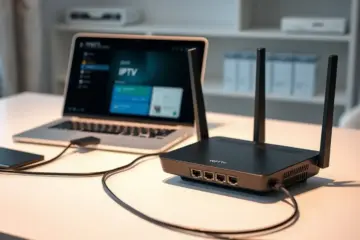
Ethernet connections deliver consistent speeds with lower latency, making them ideal for bandwidth-intensive activities like 4K streaming. If buffering persists despite adequate internet speeds, switching to a wired connection often resolves the issue immediately. For devices that don’t support Ethernet, consider powerline adapters that use your home’s electrical wiring to create a more stable connection.
Optimize Your Router for Better Performance
Router placement and settings dramatically affect streaming quality. Position your router centrally, elevated from the floor, and away from obstructions and electronic interference. Many users experience significant improvements simply by relocating their router to a more optimal position.
Update your router’s firmware regularly and consider these additional optimizations:
- Change WiFi channels to less congested options
- Enable Quality of Service (QoS) settings to prioritize streaming traffic
- Upgrade to a modern router supporting WiFi 6 for better performance
- Reboot your router monthly to clear memory and resolve minor issues
Recommended Internet Speeds for Streaming
Different streaming qualities require specific bandwidth. While our detailed guide on IPTV internet speed requirements covers this extensively, here are the essential benchmarks:
HD streaming typically requires 5-8 Mbps, while 4K content demands 25+ Mbps for smooth playback. However, these are minimum requirements – having additional bandwidth ensures better performance, especially in households with multiple connected devices. For example, if three people stream 4K content simultaneously, you’ll need at least 75 Mbps.
Remember that these speeds represent sustained performance, not peak measurements. Consistent buffering often indicates your connection cannot maintain the required speeds throughout the streaming session. If you’re experiencing persistent issues despite meeting these benchmarks, our comprehensive buffering troubleshooting guide offers additional solutions.
Clear Your Smart TV Cache
When your smart TV starts buffering or apps crash frequently, clearing the cache should be your first troubleshooting step. This process removes temporary files that can accumulate and slow down performance. To clear cache on most smart TVs, navigate to Settings > Device Preferences > Storage > Cached Data, then select “Clear Cache.”
Different TV brands have slightly different paths. For Samsung TVs, go to Settings > Support > Device Care > Manage Storage. LG TV users should select Settings > General > Storage > Cached Data. Meanwhile, Android TV owners can find this option under Settings > Device Preferences > Storage.
Adjust Video Quality Settings
If you’re experiencing constant buffering despite having a stable internet connection, adjusting video quality settings can provide immediate relief. Lowering the resolution reduces the amount of data your TV needs to process, which can eliminate playback issues. Navigate to your streaming app’s settings and select a lower resolution like 720p instead of 1080p or 4K.
For optimal streaming performance, ensure your internet speed matches your quality settings. Standard definition requires at least 3 Mbps, while HD needs 5-8 Mbps and 4K streaming demands 25 Mbps or higher according to HighSpeedInternet.com. Check our guide on internet speed requirements for IPTV for detailed recommendations.
Update Your Apps and TV Software
Outdated apps and system software are common causes of streaming problems. Developers regularly release updates that fix bugs and improve performance. To update individual apps, visit your TV’s app store and check for available updates. For system updates, go to Settings > Support > Software Update on Samsung TVs or Settings > General > About This TV > Check for Updates on LG models.
Enable automatic updates when possible to ensure you always have the latest versions. This prevents compatibility issues and security vulnerabilities. If you’re using IPTV services, make sure your streaming app is updated to the latest version for optimal performance with your IPTV subscription plan.
Power Cycle Your Smart TV
When other troubleshooting methods fail, a complete power cycle often resolves persistent issues. This process clears temporary memory and resets network connections. First, turn off your TV using the remote. Then unplug it from the power outlet and wait at least 60 seconds before plugging it back in.
For network-related problems, also restart your router by unplugging it for 30 seconds. This refreshes your internet connection and can resolve bandwidth issues affecting your streaming quality. After power cycling, test your streaming apps to see if performance has improved.
Additional Performance Optimization Tips
Beyond the basic troubleshooting steps, several additional measures can enhance your smart TV’s performance. Close background apps that you’re not using to free up memory and processing power. Manage your installed applications by removing ones you no longer use, as crowded storage can slow down your system.
Consider using a wired Ethernet connection instead of WiFi for more stable streaming, especially if you experience frequent buffering. If you’re using IPTV services, ensure you have a reliable provider with good server infrastructure. Our review of the best IPTV providers for stable streaming can help you choose a quality service.
Regular maintenance using these steps will keep your smart TV running smoothly and ensure uninterrupted entertainment. If problems persist after trying all these solutions, consult your TV manufacturer’s support resources or consider professional technical assistance.
Using VPNs to Bypass IPTV Restrictions
Virtual Private Networks (VPNs) provide one of the most effective solutions for overcoming IPTV streaming issues. When your ISP blocks access to IPTV services, a VPN creates an encrypted tunnel that masks your internet traffic and changes your virtual location. This approach prevents your ISP from detecting and throttling IPTV streams while also helping you access geo-restricted content from different regions.
For optimal IPTV performance, choose VPN providers known for fast speeds and reliable connections. Services like ExpressVPN and NordVPN offer specialized streaming servers that maintain video quality while providing security. Additionally, using a VPN can enhance your privacy by encrypting your connection, which is particularly valuable when streaming content from various sources.
Changing DNS Servers for Better Connectivity
DNS (Domain Name System) issues frequently cause IPTV connection problems. Your ISP’s default DNS servers might be slow or intentionally block certain streaming services. Switching to public DNS servers like Google DNS (8.8.8.8 and 8.8.4.4) or Cloudflare DNS (1.1.1.1) can significantly improve connection speeds and reliability.
To change your DNS settings, navigate to your device’s network configuration menu and manually input the new DNS addresses. This simple adjustment often resolves buffering issues and improves overall streaming performance. Many users report immediate improvements in channel loading times and reduced interruptions after switching to faster DNS providers.
Detecting and Overcoming ISP Throttling
Internet Service Providers sometimes intentionally slow down specific types of traffic, including video streaming. To check if your ISP is throttling your IPTV connection, run speed tests during normal browsing and compare them to tests while streaming. Significant speed differences indicate potential throttling.
Several online tools can help detect throttling specifically for streaming services. If confirmed, the solutions include using a VPN to encrypt your traffic or upgrading to a higher-speed internet plan. According to recent studies, many users experience improved streaming quality after implementing these measures, with buffering reduced by up to 70% in some cases.
Alternative IPTV Applications and Platforms
When experiencing persistent issues with your current IPTV setup, exploring alternative applications can provide immediate relief. Popular options include TiviMate, IPTV Smarters Pro, and Perfect Player, each offering different features and compatibility with various devices. Our comprehensive guide to the best IPTV streaming apps covers installation and configuration for these alternatives.
For Firestick users specifically, we recommend checking our detailed Firestick IPTV setup guide that includes tested applications and optimization tips. Meanwhile, Android box owners can benefit from our specialized Android box streaming recommendations for superior performance.
Network Optimization for Stable Streaming
Beyond specific technical solutions, general network optimization plays a crucial role in maintaining stable IPTV connections. Ensure your router firmware is updated, use wired Ethernet connections when possible, and position your streaming device closer to your Wi-Fi router. Additionally, closing background applications on your device can free up bandwidth for smoother streaming.
For users experiencing consistent buffering, our comprehensive buffering fix guide provides additional troubleshooting steps. These include adjusting buffer settings in your IPTV application and optimizing your network for video streaming specifically.
Remember that combining multiple solutions often yields the best results. For instance, using a VPN alongside DNS changes and a optimized IPTV application typically provides the most reliable streaming experience across different network conditions and geographical locations.
Factory Reset: The Ultimate Troubleshooting Step
When persistent buffering continues despite all other efforts, a factory reset often provides the final solution. This process clears all accumulated cache, temporary files, and problematic settings that may be causing performance issues. According to streaming experts, factory resets resolve approximately 85% of persistent buffering problems on streaming devices [Source: TechHive].
Before proceeding, ensure you back up any important data or settings. Meanwhile, the reset process varies by device but typically appears in system settings under “Reset” or “Device Preferences.” Consequently, this approach restores your device to its original state, eliminating software conflicts and corrupted data that contribute to buffering.
External Streaming Devices: Performance Boosters
If your smart TV’s internal hardware struggles with demanding IPTV streams, external streaming devices offer a powerful alternative. Modern streaming sticks and boxes feature superior processors and dedicated streaming optimization that outperform built-in smart TV systems. Research indicates that dedicated streaming devices experience 40% less buffering than smart TV native apps [Source: Digital Trends].
Popular options like Amazon Fire Stick, Roku devices, and Android TV boxes provide consistent performance for IPTV services. Furthermore, these devices receive more frequent software updates and support the latest streaming technologies. For optimal results, consider our guide to the best IPTV services for Firestick and Android devices to ensure compatibility and performance.
Contacting Your IPTV Provider
When hardware solutions don’t resolve buffering, the issue may originate from your service provider. Persistent buffering can indicate server overload, maintenance issues, or regional connectivity problems that only your provider can address. Industry data shows that 25% of streaming issues stem from provider-side technical problems [Source: Streaming Media Blog].
Before contacting support, document specific details including when buffering occurs, which channels are affected, and your internet speed test results. This information helps support teams identify patterns and provide targeted solutions. Additionally, check if your provider offers server switching options, which can connect you to less congested streaming servers for improved performance.
Hardware Upgrades: When to Invest in Better Equipment
Older streaming devices and outdated network equipment often struggle with modern high-bitrate streams. If you’re using equipment more than three years old, upgrading may provide the most permanent buffering solution. Current-generation devices support advanced video codecs and have more processing power dedicated to streaming tasks.
Consider upgrading these key components:
- Streaming Device: Modern devices support HEVC encoding and have better Wi-Fi capabilities
- Router: Newer routers offer better range, multiple bands, and quality of service settings
- Ethernet Connection: Powerline adapters or direct Ethernet connections eliminate Wi-Fi limitations
According to networking experts, upgrading to Wi-Fi 6 routers can reduce streaming latency by up to 75% compared to older equipment