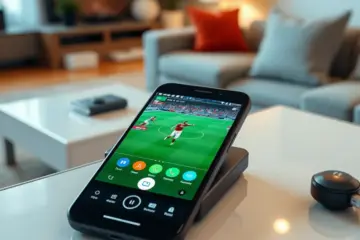
IPTV Smarters Pro Setup Guide: A Comprehensive Step-By-Step Tutorial

Chapter 1: Understanding IPTV Smarters Pro – Your Ultimate Streaming Companion
What is IPTV Smarters Pro?
IPTV Smarters Pro is a premium streaming application that serves as a powerful media player for IPTV services. This versatile app allows users to access live TV channels, video-on-demand content, and catch-up TV through their IPTV subscriptions. Unlike traditional cable or satellite services, IPTV Smarters Pro delivers content over internet protocol networks, offering greater flexibility and customization options for modern viewers [1].
Key Features That Set It Apart
The application boasts an impressive array of features designed to enhance your streaming experience. Users benefit from multi-screen support, allowing simultaneous viewing on different devices. The electronic program guide (EPG) provides comprehensive scheduling information, while parental controls ensure family-friendly viewing. Additionally, the app supports external video players and offers recording capabilities for time-shifted viewing [2].
Comprehensive Device Support
One of IPTV Smarters Pro’s greatest strengths is its extensive device compatibility. The app works seamlessly across multiple platforms including Android smartphones and tablets, iOS devices (iPhone and iPad), Amazon Fire TV Stick and Fire TV devices, Windows and Mac computers, and Android TV boxes and smart TVs. This cross-platform functionality ensures you can enjoy your favorite content whether you’re at home or on the go [1].
Understanding the Legal Landscape
It’s crucial to understand that IPTV Smarters Pro itself is a legitimate application available through official app stores. However, the legality of IPTV services depends entirely on the content source and licensing agreements. The app functions as a media player that requires valid IPTV subscription credentials to access content [3].
Legal Considerations for Users
When using IPTV services, always ensure you’re subscribing to legitimate providers with proper content licensing. Unauthorized streaming of copyrighted material can have legal consequences. To stay compliant with copyright laws, always verify that your IPTV provider has proper licensing for the content they distribute [3].
Getting Started with IPTV Smarters Pro
To begin using IPTV Smarters Pro, you’ll need a valid subscription from a legitimate IPTV provider. The setup process typically involves downloading the app from official sources, entering your subscription credentials, and configuring your preferred settings. The application’s user-friendly interface makes navigation intuitive, while its robust feature set ensures a premium streaming experience across all your devices [4].
Chapter 2: Download & Installation Guide Across All Devices
Android Installation Guide
Installing IPTV Smarters Pro on Android devices is straightforward through the Google Play Store. First, open the Play Store app and search for “IPTV Smarters Pro.” Alternatively, you can download the APK file directly from the official website if the app isn’t available in your region. After installation, launch the app and accept the terms and conditions. You’ll need your IPTV service credentials, including username, password, and server URL, to complete the setup process.
iOS Installation Process
For iOS users, IPTV Smarters Pro is available on the App Store. Simply search for the app and download it directly. However, Apple’s strict guidelines mean the app may occasionally be removed or unavailable in certain regions. In such cases, users can sideload the app using third-party app stores or developer accounts. Once installed, configure the app with your IPTV provider details to start streaming your favorite content.
Windows PC Installation
Windows users have multiple options for installing IPTV Smarters Pro. The most reliable method involves using an Android emulator like BlueStacks or NoxPlayer. Download and install your preferred emulator, then access the Google Play Store within the emulator to install IPTV Smarters Pro. This approach provides the full Android experience on your Windows computer. Alternatively, some users prefer web-based IPTV players that work directly in browsers without additional installations.
Firestick Installation Guide
Installing IPTV Smarters Pro on Amazon Firestick requires enabling third-party app installations. Navigate to Settings > My Fire TV > Developer Options and enable “Apps from Unknown Sources.” Next, download the Downloader app from the Amazon App Store. Use Downloader to access the official IPTV Smarters Pro website and download the APK file. After installation, launch the app and enter your subscription details to begin streaming [2].
Troubleshooting Common Installation Errors
Many users encounter installation errors that can be easily resolved. For Android devices, ensure you have sufficient storage space and that “Unknown Sources” is enabled in security settings. iOS users should check their device compatibility and iOS version requirements. Firestick installations commonly fail due to incorrect APK downloads or insufficient permissions. Always download from official sources and verify file integrity before installation.
Network and Security Considerations
Proper network configuration is essential for successful IPTV Smarters Pro installation. Ensure your internet connection is stable and meets the minimum speed requirements for streaming. Additionally, consider using a VPN service to protect your privacy and potentially bypass regional restrictions. Many IPTV services recommend using VPNs for enhanced security and access to geo-restricted content [5].
Chapter 3: Initial Setup & Account Configuration
Getting Started with IPTV Smarters Pro
After successfully installing IPTV Smarters Pro on your device, the next crucial step is setting up your account and configuring the application for optimal performance. This process involves creating user profiles, selecting appropriate login methods, and entering your service provider credentials correctly.
Creating Your User Profile
When you first launch IPTV Smarters Pro, you’ll be prompted to create a user profile. This feature allows multiple family members to have personalized viewing experiences on the same device. To create a profile, enter your preferred username (this can be your name or any identifier), select an avatar or profile picture if desired, choose your preferred language and region settings, and set up parental controls during this initial phase if needed.
Understanding Login Methods
IPTV Smarters Pro offers several login methods to accommodate different service providers and user preferences. The three primary login options include Xtream Codes API Login (requiring your service provider’s URL, username, and password), M3U Playlist URL (entering the complete M3U URL provided by your service), and Xtream Codes Single Sign-On (using portal URL only with automatic credential retrieval).
Adding Service Provider Credentials
When entering your service provider credentials, accuracy is paramount. Double-check each field before proceeding. For Xtream Codes API, you’ll need the server URL (typically starting with http:// or https://), case-sensitive username from your provider, and your account password. For M3U URL, ensure the complete URL including protocol and file extension is active and accessible.
Configuring Parental Controls
IPTV Smarters Pro includes robust parental control features to protect younger viewers. To set up parental controls, navigate to Settings > Parental Controls, create a 4-digit PIN code (memorize this securely), and set content restrictions by rating levels (G, PG, PG-13, R, etc.), specific channel categories, or individual channel blocking. Enable PIN requirement for certain content types to ensure family-safe viewing.
Profile Management Best Practices
Managing multiple profiles effectively ensures everyone enjoys their personalized experience. Create separate profiles for adults and children, use descriptive profile names for easy identification, regularly update profile settings as preferences change, and back up your profile settings if the app supports this feature.
Troubleshooting Common Setup Issues
If you encounter problems during setup, verify your internet connection stability, double-check all credentials for accuracy, ensure your IPTV subscription is active and paid, contact your service provider for credential verification, and clear the app cache and restart if experiencing persistent issues. Remember that proper account configuration is essential for seamless streaming.
Chapter 4: Advanced Configuration & Customization
Mastering Channel Organization
IPTV Smarters Pro offers powerful channel management tools that transform your viewing experience. Create custom channel groups by navigating to the “Live TV” section and selecting “Groups” or “Categories.” This allows you to organize channels by genre, language, or personal preference. The favorites feature is particularly useful for quick access to your most-watched channels. Simply press and hold any channel to add it to your favorites list. Moreover, you can create multiple watchlists for different family members or viewing occasions.
EPG Configuration Excellence
Electronic Program Guide (EPG) setup is crucial for a premium IPTV experience. In IPTV Smarters Pro, access the EPG settings through the main menu under “Settings” or “Preferences.” Here you can configure the EPG source URL provided by your IPTV service provider. Advanced EPG features include custom timezone settings for accurate scheduling, EPG cache management for faster loading, program reminder alerts for upcoming shows, and EPG refresh intervals to keep information current.
Video and Audio Optimization
IPTV Smarters Pro includes comprehensive video and audio settings to enhance your streaming quality. In the video settings section, you’ll find options for video player selection (ExoPlayer, VLC, or native), hardware acceleration for smoother playback, aspect ratio adjustments, deinterlacing options for older content, and video scaling and zoom controls. For audio optimization, configure audio track selection for multi-language content, audio delay synchronization, surround sound compatibility, and volume normalization [5].
Personalized Watchlist Creation
Creating personalized watchlists transforms IPTV Smarters Pro into your customized entertainment hub. Access the “Watchlist” or “My List” feature from the main interface. Advanced watchlist strategies include creating themed lists (weekend movies, daily news), setting up family member-specific lists, organizing by viewing priority, and adding program reminders for watchlist items. The watchlist feature integrates seamlessly with the EPG, allowing you to see when your favorite shows are airing.
Advanced Playback Controls
IPTV Smarters Pro offers sophisticated playback controls for power users. These include timeshift functionality for pausing and rewinding live TV, recording capabilities for scheduled programs, multi-screen viewing options, parental control settings, and auto-start on last channel. Configure these features through the “Playback” or “Player Settings” menu. The timeshift feature, in particular, allows you to pause live television and resume watching from where you left off.
Custom Interface Settings
Personalize the IPTV Smarters Pro interface to match your preferences. Access the “Interface” or “Theme” settings to modify color schemes and themes, layout preferences (grid, list, or mosaic view), font sizes and styles, background customization, and navigation button placement. These customization options ensure the application feels tailored to your specific needs and viewing habits.
Chapter 5: Troubleshooting & Performance Optimization
Common Streaming Issues and Solutions
Buffering problems often stem from insufficient internet bandwidth or network congestion. Ensure your internet connection meets the minimum requirements for streaming quality. For HD content, a stable 10-15 Mbps connection is recommended, while 4K streaming may require 25 Mbps or higher. If experiencing consistent buffering, try reducing video quality settings or connecting via Ethernet instead of Wi-Fi for more stable performance [5].
Application Performance Optimization
To optimize IPTV Smarters Pro performance, regularly clear the application cache through your device settings. Ensure you’re running the latest version of the app, as updates often include performance improvements and bug fixes. Close background applications that may be consuming system resources, and consider restarting your device periodically to clear temporary memory issues.
Network Configuration for Optimal Streaming
Proper network configuration significantly impacts streaming quality. Use quality of service (QoS) settings on your router to prioritize streaming traffic. Position your streaming device closer to your Wi-Fi router or use Wi-Fi extenders for better signal strength. For the most stable connection, consider using a wired Ethernet connection when possible, especially for 4K streaming.
Advanced Troubleshooting Techniques
When standard troubleshooting fails, advanced techniques include checking your IPTV service status with your provider, testing with different devices to isolate hardware issues, verifying VPN configurations if used, and testing during different times of day to identify peak usage problems. Keep a log of when issues occur and what content was affected to help identify patterns.
Maintenance Best Practices
Regular maintenance ensures long-term optimal performance. Update the application when new versions become available, periodically review and clean up your channel lists and favorites, monitor your internet speed regularly, and keep your device operating system updated. These practices help prevent common issues and ensure you continue enjoying seamless streaming experiences.
Sources
- All In One TV – How to Install IPTV on Your Smart TV: A Comprehensive Guide
- All In One TV – Unlock Your Entertainment: How to Set Up IPTV Subscription on Firestick in Under 10 Minutes
- All In One TV – Is IPTV Legal in My Country? Understanding the Legalities and Best Practices
- All In One TV – How to Order IPTV Service for Seamless Streaming
- All In One TV – How Much Internet Speed Do You Need for IPTV Streaming?