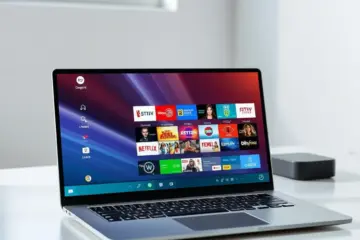
How To Run IPTV On Apple TV A Complete Setup Guide
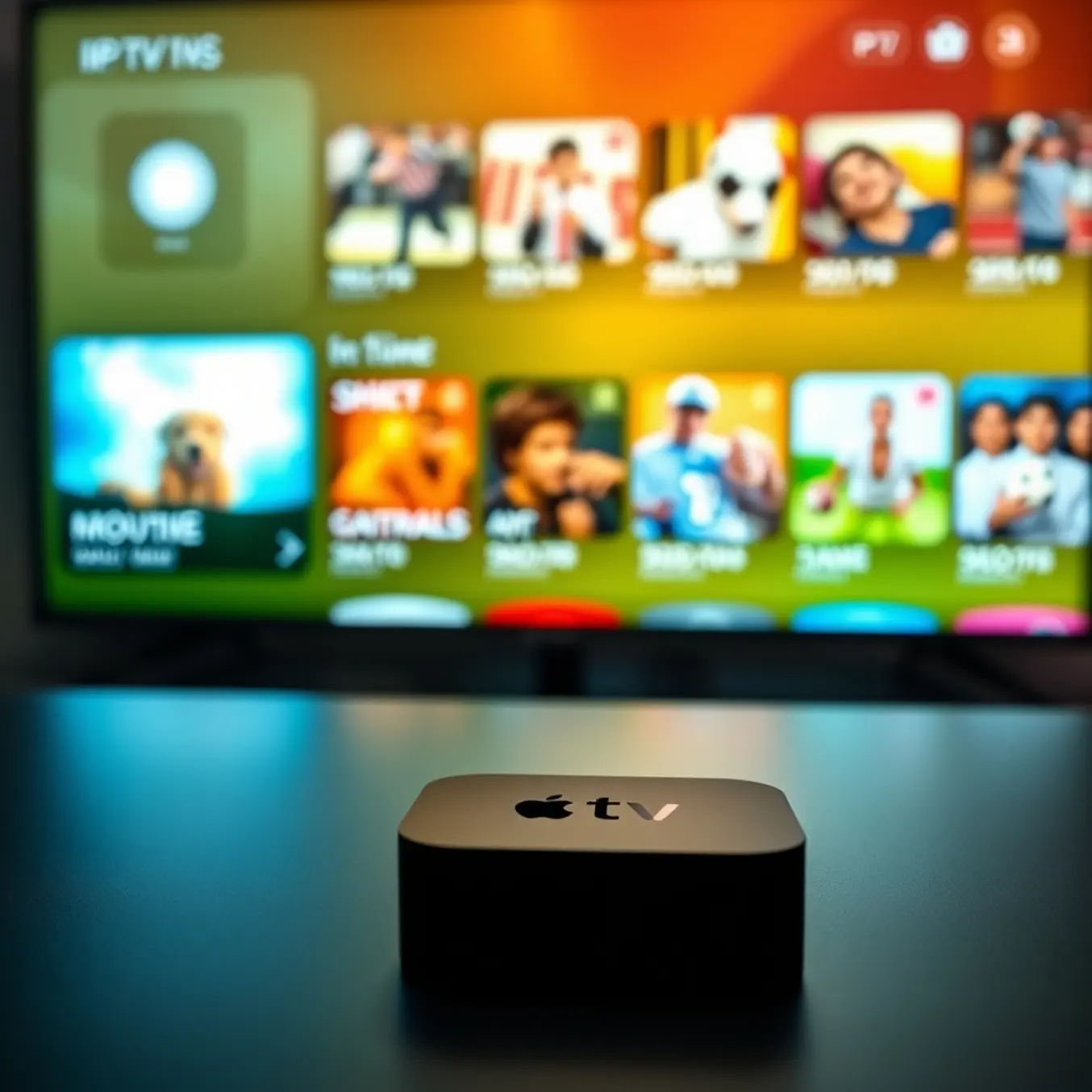
Chapter 1: Understanding IPTV and Apple TV Compatibility
What is IPTV and How Does It Work?
IPTV (Internet Protocol Television) delivers television content over internet networks instead of traditional terrestrial, satellite, or cable formats. This technology transmits media using internet protocol (IP) networks, allowing viewers to stream content on-demand rather than following a fixed broadcast schedule. Unlike conventional TV that broadcasts all channels simultaneously, IPTV sends only the program you select, making it more efficient and personalized.
The system works by converting traditional television signals into digital data packets that travel through high-speed internet connections. These packets are then reassembled by your device into viewable content. There are three primary IPTV service models: Video on Demand (VOD) for accessing movies and shows anytime, Time-Shifted Media for catching up on recently aired programs, and Live IPTV for streaming live events as they happen.
Why Apple TV is an Excellent Platform for IPTV
Apple TV stands out as a premier platform for IPTV streaming due to its powerful hardware and sophisticated software ecosystem. The device’s A-series chips provide exceptional processing power for smooth 4K video playback and rapid app performance. Additionally, Apple TV’s tvOS offers a stable, secure environment with regular updates that ensure compatibility with the latest IPTV applications and services.
The platform’s intuitive interface and Siri remote create a seamless user experience for navigating IPTV services. Furthermore, Apple TV supports a wide range of popular IPTV apps including IPTV Smarters Pro, TiviMate, and GSE Smart IPTV, giving users multiple options for accessing their preferred services. The device’s integration with other Apple products through AirPlay and HomeKit enhances its functionality within a connected home entertainment system.
Compatible Apple TV Models for IPTV
Most modern Apple TV models support IPTV streaming, though capabilities vary by generation:
- Apple TV 4K (1st, 2nd, and 3rd generations): These models offer the best IPTV experience with 4K HDR support, Dolby Vision, and powerful processors that handle high-bitrate streams effortlessly.
- Apple TV HD (4th generation): Supports 1080p streaming with capable hardware for smooth IPTV performance.
- Apple TV (3rd generation and earlier): While technically capable of some IPTV streaming through specific apps, these older models lack the app store functionality of newer versions, limiting their IPTV compatibility.
For optimal performance, the Apple TV 4K (3rd generation) with its A15 Bionic chip provides the most future-proof option, efficiently handling multiple streaming formats including HEVC and AV1 codecs that many IPTV services now utilize.
Important Legal Considerations for IPTV on Apple TV
When using IPTV services on Apple TV, understanding the legal landscape is crucial. While IPTV technology itself is perfectly legal, the content sources can sometimes operate in legal gray areas. Many legitimate IPTV providers obtain proper licensing for their content, but unauthorized services that redistribute copyrighted material without permission exist and should be avoided.
The legal status of IPTV varies by country, with some regions having stricter enforcement against unlicensed services than others. For instance, IPTV legality in the USA depends largely on whether the service holds proper broadcasting rights. Similarly, European countries have implemented various regulations governing IPTV services and their content distribution.
To ensure you’re using IPTV legally on your Apple TV:
- Choose providers that transparently disclose their content licensing
- Avoid services offering premium content at suspiciously low prices
- Research whether the provider has faced legal challenges
- Consider using a VPN only for privacy purposes, not to access geo-restricted content illegally
Reputable IPTV services typically partner with content creators and distributors, ensuring proper compensation for rights holders while providing users with legal access to their favorite programming through Apple TV’s robust streaming platform.
Chapter 2: Essential IPTV Apps for Apple TV
Top IPTV Apps for Apple TV
Apple TV users have several excellent IPTV applications available to transform their streaming experience. These apps provide access to live television, video-on-demand content, and premium channels through internet protocol television services. The App Store offers both free and premium options with varying features and capabilities.
GSE Smart IPTV
GSE Smart IPTV stands out as one of the most versatile IPTV players for Apple TV. This comprehensive application supports multiple playlist formats including M3U, XSPF, and JSON. Moreover, it features built-in Chromecast support, EPG (Electronic Program Guide) integration, and parental controls. The app offers both a free version with basic functionality and a premium version that removes ads and unlocks additional features.
IPTV Smarters Pro
IPTV Smarters Pro has gained significant popularity among Apple TV users for its user-friendly interface and robust performance. This application supports Xtream Codes API, M3U URLs, and local playlists. Additionally, it provides comprehensive EPG support, multi-screen functionality, and catch-up TV features. The app is available for free download, though it requires a valid IPTV subscription to access content.
Flex IPTV
Flex IPTV offers a clean, intuitive interface specifically designed for Apple TV. This application supports M3U playlists and provides reliable streaming performance with minimal buffering. It includes features like favorites management, parental controls, and EPG integration. Flex IPTV is a paid application available through the App Store with a one-time purchase model.
Free vs Paid IPTV Apps: Key Differences
Understanding the distinction between free and paid IPTV applications helps users make informed decisions about their streaming setup.
Free IPTV Applications
Free IPTV apps typically offer basic functionality with limitations. These applications often include advertisements, restricted features, and sometimes reduced streaming quality. However, they provide an excellent way to test IPTV services before committing to a paid application. Popular free options include IPTV Smarters Pro and the basic version of GSE Smart IPTV.
Paid IPTV Applications
Paid IPTV applications deliver enhanced features and improved user experiences. These typically include ad-free interfaces, advanced customization options, better customer support, and regular updates. Applications like Flex IPTV and the premium version of GSE Smart IPTV fall into this category. The investment in a paid app often results in smoother streaming and more reliable performance.
Choosing the Right IPTV App
Selecting the appropriate IPTV application depends on your specific needs and preferences. Consider factors like interface design, supported features, compatibility with your IPTV service, and budget constraints. Testing free versions before purchasing premium applications can help determine which solution works best for your streaming requirements.
Chapter 3: Step-by-Step Setup Guide
Installation Guide for Apple TV
Installing IPTV applications on Apple TV follows a straightforward process through the App Store.
Step-by-Step Installation
First, navigate to the App Store on your Apple TV using the remote. Next, use the search function to find your preferred IPTV application by name. Then, select the application and click “Get” or the price button to download and install. Once installed, launch the application and configure it with your IPTV subscription details or playlist information.
Configuration Process
After installation, most IPTV applications require configuration with your service provider’s details. This typically involves entering your M3U playlist URL or Xtream Codes information. Many applications also allow customization of settings like video player type, EPG sources, and parental controls to optimize your viewing experience.
Configuring Service Credentials and Connection Details
After installing your IPTV app, the next crucial step involves entering your service credentials. These details are typically provided by your IPTV service provider upon subscription and may include:
- Username and password
- Portal URL or server address
- M3U playlist URL
- Xtream Codes API information
Open your IPTV application and navigate to the settings or add playlist section. Here, you’ll need to input the specific connection details provided by your service. For Xtream Codes API configuration, you’ll typically enter the portal URL along with your username and password. Meanwhile, M3U setup requires pasting the complete playlist URL provided by your service.
Setting Up Electronic Program Guide (EPG) Data
The Electronic Program Guide is essential for navigating your IPTV service effectively, providing program schedules and show information. Most quality IPTV services include EPG data within their M3U playlists or provide separate EPG URLs for configuration.
To set up EPG data, access your IPTV app’s settings and locate the EPG or XMLTV section. Here, you can enter the EPG URL provided by your service. Some advanced apps like TiviMate allow you to assign specific EPG sources to different channel groups, ensuring accurate program information across all your content.
Testing and Verifying Your Setup
After completing the configuration process, thoroughly test your IPTV setup to ensure everything functions correctly. Navigate through different channel categories, test video-on-demand content, and verify that EPG data displays properly. Check for any buffering issues or playback errors that might indicate configuration problems.
If you encounter persistent issues, double-check your credentials and connection details. Ensure your internet connection meets the recommended speed requirements for IPTV streaming. For advanced troubleshooting, our buffering solutions guide addresses common performance issues.
Remember that proper setup is crucial for optimal IPTV performance. Taking the time to configure your service correctly ensures a seamless streaming experience with reliable access to all your favorite content.
Chapter 4: Advanced Configuration Tips
Advanced Video Quality Optimization
To achieve the best possible streaming experience, optimizing your video quality settings is essential. First, ensure your internet connection meets the recommended speed requirements for your desired resolution. For standard HD streaming, at least 10 Mbps is recommended, while 4K content typically requires 25 Mbps or higher. Learn more about internet speed requirements for IPTV.
Many IPTV apps offer automatic quality adjustment, but manually selecting the highest available resolution ensures you’re getting the best picture your connection can handle. Additionally, enabling hardware acceleration in your IPTV player can significantly improve playback performance by offloading video decoding to your device’s GPU.
Buffer Size Configuration
Adjusting buffer settings can dramatically reduce buffering issues. Increasing the buffer size allows more content to pre-load, creating a smoother viewing experience during network fluctuations. Most advanced IPTV players like TiviMate and IPTV Smarters Pro offer customizable buffer settings in their premium versions. Discover comprehensive buffering solutions.
Setting Up Comprehensive Parental Controls
Modern IPTV services provide robust parental control features to create a safe viewing environment for families. These controls typically include content rating restrictions, channel blocking, and time-based viewing limits. To set up effective parental controls, begin by creating separate user profiles for children with appropriate content restrictions.
Most IPTV applications allow you to password-protect specific channels or categories. For instance, you can restrict access to adult content, premium movie channels, or specific international programming. Explore navigation and control features.
Time-Based Viewing Restrictions
Implementing viewing schedules ensures children aren’t watching content during inappropriate hours. Many IPTV services enable you to set daily time limits or specific blackout periods. This feature helps maintain healthy viewing habits while giving parents peace of mind.
Mastering Custom Playlists and Favorites
Creating and managing custom playlists transforms your IPTV experience from passive viewing to personalized entertainment. Start by organizing channels into logical categories that match your viewing preferences. Group sports channels together, create a news section, or compile international channels by region.
Most IPTV services support M3U playlists, which allow for extensive customization. Understand M3U playlist functionality. You can edit these playlists to remove unwanted channels, reorder content, and create custom categories that appear directly in your IPTV application.
Advanced Favorites Management
Beyond basic channel favoriting, advanced users can create multiple favorite lists for different family members or viewing scenarios. For example, create a “Weekend Sports” list containing all your preferred sports channels, or a “Movie Night” selection featuring premium film channels and video-on-demand services.
Many premium IPTV players like TiviMate offer sophisticated favorites management, including the ability to hide unused channels entirely from your guide. This declutters your interface and makes navigation significantly more efficient. Optimize TiviMate settings for better organization.
EPG (Electronic Program Guide) Customization
A properly configured EPG enhances your ability to discover and schedule content. Many IPTV services allow you to integrate multiple EPG sources for more comprehensive program information. Ensure your EPG timezone settings match your location to avoid scheduling conflicts for live events and recordings.
Advanced users can customize EPG appearance, including font sizes, color schemes, and layout options to improve readability. Some applications even allow you to export and backup your EPG configurations, making device migration or recovery much simpler.
Chapter 5: Troubleshooting Common Issues
Solving Buffering Issues
Buffering remains the most common frustration for IPTV users, often caused by insufficient internet speeds or network congestion. For optimal streaming, ensure your internet connection meets the minimum requirements: at least 25 Mbps for HD content and 35+ Mbps for 4K streaming. Additionally, using a wired Ethernet connection instead of Wi-Fi can significantly reduce buffering by providing more stable bandwidth.
If you’re experiencing persistent buffering, try clearing your app’s cache or restarting your streaming device. For more comprehensive solutions, check out our detailed guide to fixing IPTV buffering that covers advanced troubleshooting techniques.
Audio and Video Sync Problems
Audio-video synchronization issues can ruin your viewing experience, making dialogue appear out of sync with mouth movements. This problem often stems from codec compatibility issues or processing delays in your streaming device. First, try restarting both your IPTV app and streaming device, as this simple step resolves many sync problems.
If the issue persists, check your IPTV player’s audio settings. Many apps like TiviMate offer audio delay adjustment options that let you manually sync the audio with the video. Alternatively, switching to a different audio codec in your device’s settings may resolve compatibility issues causing the desynchronization.
Network and Connection Troubleshooting
Many IPTV issues originate from network problems rather than the service itself. Conduct a speed test during peak viewing hours to identify bandwidth limitations. If your internet service provider is throttling streaming traffic, consider using a VPN to bypass restrictions and potentially improve streaming quality.
Furthermore, router placement and configuration significantly impact streaming stability. Position your router centrally and away from interference sources like microwaves or cordless phones. For wireless connections, switching to the 5GHz band typically provides less interference and better performance for video streaming compared to the crowded 2.4GHz band.
Device-Specific Solutions
Different streaming platforms require unique troubleshooting approaches. Smart TV users should check for firmware updates, as outdated operating systems can cause compatibility issues with IPTV applications. Meanwhile, Firestick and Android box users may need to manage storage space more actively, as limited storage can degrade app performance over time.
For comprehensive device guidance, explore our complete setup guide that covers optimization techniques for various streaming platforms. Remember that sometimes the simplest solution—completely uninstalling and reinstalling your