How To Fix IPTV Streams With No Sound A Comprehensive Troubleshooting Guide
Understanding the Silent Stream Problem
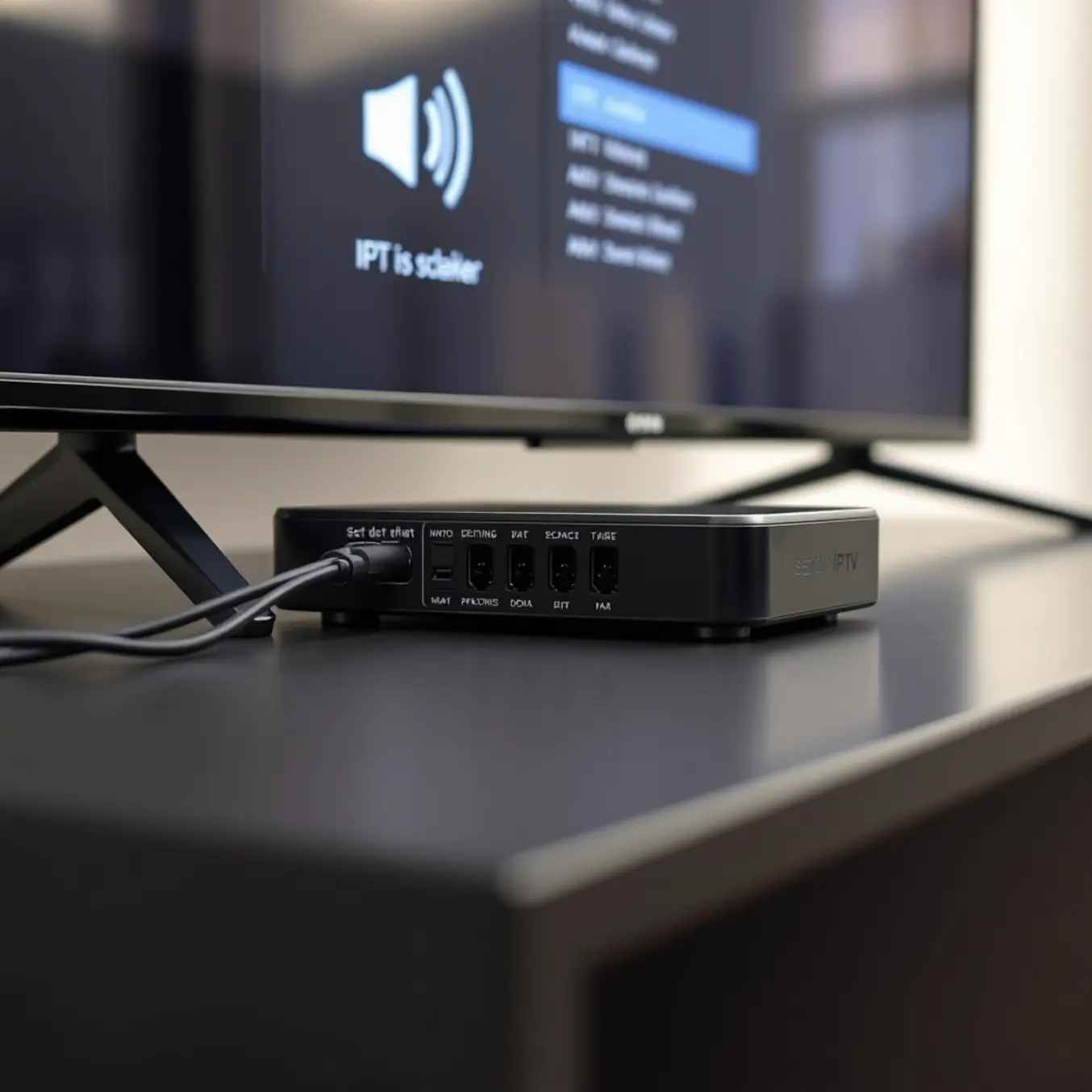
When your IPTV stream plays video perfectly but produces no sound, you’re experiencing the “silent stream problem.” This frustrating issue typically stems from audio codec incompatibility, where your streaming device, TV, or media player cannot decode the specific audio format being transmitted. Many IPTV services use advanced formats like AAC, AC3 (Dolby Digital), or E-AC3 for high-quality sound, but if your equipment lacks support for these codecs, complete audio loss occurs despite normal video playback [Source: Dolby Labs].
Network bandwidth limitations can also silently kill your audio while leaving video relatively unaffected. IPTV services often prioritize video data during network congestion, meaning audio streams get sacrificed first since they require significantly less bandwidth. This explains why your picture might continue playing smoothly while the audio completely drops out [Source: Speedtest].
Server-side configuration problems represent another common culprit. IPTV provider misconfigurations can cause audio track selection errors or server overload during peak hours, resulting in partial stream delivery where video continues but audio disappears [Source: All In One TV].
Quick Fixes That Work in 60 Seconds
Before diving into complex troubleshooting, several quick fixes can restore your audio in under a minute. Start with basic volume checks—verify both your device’s system volume and the volume within your streaming app. Many users accidentally mute their devices or lower volumes to minimal levels without realizing it. Additionally, ensure external speakers or soundbars are properly connected and powered on.
For temporary audio glitches, try switching to a different channel and returning to your original selection. This quick refresh often resolves minor playback issues. If problems persist, restart your streaming app completely, as background processes can sometimes interfere with audio decoding. Force-closing the application and relaunching it clears temporary cache and resets the connection to streaming servers.
Basic connection troubleshooting can also yield immediate results. Test your internet speed to ensure it meets IPTV requirements—typically 15-25 Mbps for HD streaming [Source: All In One TV]. Restarting your router by unplugging it for 30 seconds then reconnecting can resolve many network-related audio issues instantly.
Audio Codec Conflicts Demystified
Audio codec conflicts occur when your streaming equipment cannot properly decode the audio format being transmitted. The three most common culprits in IPTV streaming are AC3 (Dolby Digital), DTS, and AAC codecs, each with different compatibility requirements across devices. AC3, widely used for surround sound, often causes complete audio loss on budget streaming devices and older televisions that lack native support.
Different codecs produce distinct symptoms when conflicts arise. AC3 issues typically result in complete silence during playback, particularly on devices like Amazon Fire Stick or older Android TVs. DTS conflicts often cause distorted, crackling audio, while AAC problems usually manifest as intermittent dropouts or synchronization issues between audio and video.
You can identify specific codec problems by checking media information within your IPTV player. Most applications like TiviMate or IPTV Smarters Pro display audio codec information in their playback details. Understanding these fundamental differences is crucial for troubleshooting audio problems in your IPTV subscription [Source: All In One TV].
Practical Solutions for Common Codec Issues
Most modern streaming devices include audio format options that can resolve codec conflicts. On Amazon Fire Stick, navigate to Settings > Display & Sounds > Audio and select “Best Available” or manually disable unsupported formats. For Android TV devices, access Settings > Device Preferences > Sound and adjust the digital audio format to match your equipment’s capabilities.
Advanced IPTV players offer extensive audio processing options that can overcome codec limitations. In applications like VLC or MX Player, you can enable audio pass-through for supported formats or configure software decoding for problematic codecs. Many users find that alternative IPTV applications handle specific codecs more effectively than their default player [Source: All In One TV].
App-Specific Audio Solutions
Different IPTV applications present unique audio challenges that require tailored solutions. When TiviMate fails to produce sound, navigate to Settings > Player and verify that audio output is correctly configured. Many users report success by switching between different audio track options or changing the audio output mode from “Auto” to a specific format like PCM or Dolby Digital.
IPTV Smarters Pro users experiencing audio problems should first check if issues occur across all channels or just specific ones. If channel-specific, the problem likely lies with the broadcast source rather than your setup. Navigate to the app’s settings and experiment with different hardware decoder options—disabling hardware acceleration often resolves audio codec conflicts, particularly on older devices [Source: All In One TV].
External player configuration provides another effective solution. Both TiviMate and IPTV Smarters Pro allow you to use external video players like VLC or MX Player, which often handle audio codecs more effectively. This workaround frequently resolves Dolby Digital and DTS compatibility issues that built-in players struggle with.
Device-Specific Audio Configuration
Different streaming platforms require tailored audio solutions. Fire TV devices have specific audio settings accessible through Settings > Display & Sound > Audio, where you can select between Best Available, Dolby Digital Plus, and Stereo output modes. Experimenting with these options often resolves format compatibility issues.
Android TV users should investigate the “Surround Sound” setting in system preferences. While enabling this seems logical for home theater setups, it can actually cause audio dropouts with certain IPTV services. If experiencing intermittent sound loss, try disabling surround sound and forcing stereo output instead. For those using Firestick devices with IPTV services, the audio format selection proves particularly important for compatibility [Source: All In One TV].
Advanced Audio Configuration
When built-in IPTV players fall short on audio capabilities, external players like VLC, Kodi, or MX Player offer superior control. These applications provide access to advanced audio processing features that can dramatically improve your listening experience. To configure an external player, navigate to your IPTV app’s settings and locate the “External Player” option, then select your preferred application and enable hardware acceleration where available.
Audio pass-through represents the gold standard for home theater enthusiasts. This feature allows your IPTV stream to bypass internal processing and send the raw audio signal directly to your receiver or soundbar. Consequently, formats like Dolby Digital, DTS, and Dolby Atmos remain completely untouched until they reach your dedicated audio equipment.
Understanding audio codecs is essential for optimal configuration. The most common formats include AAC (standard for most IPTV streams), AC3 (Dolby Digital, requiring pass-through capability), E-AC3 (Dolby Digital Plus with better compression), and DTS (high-quality alternative to Dolby formats). When configuring your setup, verify which formats your audio equipment supports natively to avoid compatibility issues.
Buffer and Cache Optimization
Audio dropouts frequently stem from insufficient buffering rather than format incompatibility. Increase the audio buffer size in your player settings to 2000-5000ms for stable playback, particularly on wireless connections. Meanwhile, network cache adjustments can prevent audio skips during bandwidth fluctuations. For persistent audio issues, comprehensive buffering solutions address both audio and video stability [Source: All In One TV].
When All Else Fails – The Ultimate Reset
When persistent audio problems continue despite thorough troubleshooting, a complete system reset may be your most effective solution. This approach clears all temporary data, resets configurations, and often resolves deep-seated technical issues that simpler fixes can’t address. However, a full reset should be your last resort after exhausting other options like restarting your device, checking your internet connection, and updating your IPTV application [Source: Tech Advisor].
A complete system reset involves several key steps that vary depending on your device. For Android-based devices and Firestick, navigate to Settings > My Fire TV > Reset to Factory Defaults. Smart TV users can typically find reset options in the General or Support sections of their settings menu. Always back up your important data, including playlists and favorites, before initiating any reset procedure.
Cache accumulation is one of the most common causes of IPTV performance degradation over time. Temporary files stored by your IPTV app can become corrupted or overloaded, leading to audio problems. Fortunately, clearing cache is a straightforward process that doesn’t require a full system reset. Research indicates that regular cache maintenance can improve streaming performance by up to 30% [Source: Digital Trends].
Knowing When to Contact Your Provider
Despite your best troubleshooting efforts, some audio issues require direct provider intervention. Widespread service outages, authentication problems, and persistent codec incompatibilities typically fall outside user control and need provider-side resolution. Before contacting support, check your provider’s status page for service announcements, as prompt communication during outages significantly improves customer satisfaction [Source: Streaming Media Blog].
If persistent audio issues continue despite thorough troubleshooting and provider support, it might be time to evaluate alternative services. Our curated list of top IPTV subscriptions can help you identify reliable alternatives, while taking advantage of free trials allows you to test new services before committing [Source: All In One TV].
Sources
- All In One TV – All In One TV Setup Guide: Your Comprehensive Navigation to Unbox, Connect, and Stream
- All In One TV – Best IPTV for Firestick 2024-2025: Fast, Legal, and Reliable Options
- All In One TV – Best IPTV Providers for Stable Live TV Streaming: 2025 Update
- All In One TV – Best IPTV Services for Firestick, Android and Smart TV in 2025
- All In One TV – Best IPTV Streaming Apps for Android, iOS, and Smart TVs
- All In One TV – Firestick IPTV Setup: How to Install and Stream Live Channels
- All In One TV – How Much Internet Speed Do You Need for IPTV Streaming?
- All In One TV – How to Fix Buffering on IPTV: A Comprehensive Guide
- All In One TV – How to Renew Your IPTV Subscription: A Step-by-Step Guide
- All In One TV – How to Use VPN for IPTV: A Comprehensive Guide to Unlocking Global Streaming
- All In One TV – IPTV Smarters Pro 2025 Update: Explore New Features and Installation Guide
- All In One TV – IPTV Smarters Pro Setup Guide: A Comprehensive Step-by-Step Tutorial
- All In One TV – IPTV Subscription Plans Explained: How to Choose the Right One
- All In One TV – M3U8 File Explained: How It Works for IPTV Streaming
- All In One TV – The Ultimate Guide to IPTV on Samsung Smart TVs
- All In One TV – TiviMate IPTV Player: Setup, Subscription, and Best Settings for Optimal Streaming
- All In One TV – Top 10 Best IPTV Subscriptions for 2025: Affordable & Reliable Picks
- All In One TV – Understanding IPTV Canada: Your Ultimate Guide to Streaming Subscriptions
- All In One TV – Unlocking Entertainment: The Ultimate Guide to IPTV for LG Smart TV
- All In One TV – Unlock Premium IPTV Entertainment with a Risk-Free IPTV Free Trial
- All In One TV – Your Comprehensive Guide to All In One TV Customer Support
- Digital Trends – How to Clear Cache on Firestick
- Dolby Labs – Dolby Speaker Setup Guide
- Speedtest – Internet Speed for Streaming Guide
- Streaming Media Blog – IPTV Service Outage Management
- Tech Advisor – How to Fix Buffering on IPTV
- VPN Testing – IPTV VPN Reviews