How To Fix IPTV Audio Sync Problems A Complete Guide
Understanding the Audio Sync Problem
Audio sync, commonly referred to as lip sync, is the precise alignment between the audio and video components of media content. When properly synchronized, you see characters’ mouth movements match their spoken words perfectly. However, when this timing is off, it creates a noticeable and distracting lag that can significantly degrade your viewing experience. The human brain is remarkably sensitive to these timing discrepancies, with research showing people can detect audio-video misalignments as small as 45 milliseconds [Source: ResearchGate].
Why IPTV Creates Unique Sync Challenges
IPTV streaming introduces specific technical challenges that can lead to audio sync problems more frequently than traditional broadcast television. The internet-based nature of IPTV means your content travels through multiple network points, each potentially introducing processing delays. Modern IPTV services use sophisticated compression algorithms that require both encoding and decoding, adding milliseconds of processing time where audio and video streams can become desynchronized.
Network conditions play a crucial role in IPTV synchronization. When your internet connection experiences latency or packet loss, your streaming device may buffer content to maintain smooth playback, but audio and video may buffer at different rates. This is particularly problematic with slower internet connections that struggle to maintain consistent streaming quality. Different devices also process audio and video streams with varying efficiency, which becomes especially apparent when using different IPTV apps and devices.
Quick Fixes You Can Try Immediately
Restart Your Devices
When experiencing audio sync issues with your IPTV service, the simplest solution is often the most effective. Begin by restarting both your streaming device and your television. Power down your streaming device completely, unplug it from power for 30 seconds, then restart it. Similarly, turn off your television and restart it. This basic troubleshooting step resolves many common streaming issues by refreshing the connection between devices.
Check Your Internet Connection
Insufficient internet bandwidth frequently causes audio-video synchronization problems in IPTV streaming. For standard definition content, you need at least 3-5 Mbps, while HD and 4K streams require 10-25 Mbps for optimal performance. Run a speed test using services like Speedtest by Ookla to verify your connection meets these requirements. If your speeds are inadequate, try moving closer to your router, connecting via Ethernet cable instead of Wi-Fi, or limiting other devices using your network.
Switch Audio Formats and Clear Cache
Audio format compatibility issues can cause significant sync problems. Access your device’s audio settings and experiment with different formats such as PCM, Dolby Digital, or DTS. Additionally, clearing your IPTV app’s cache can resolve synchronization glitches. Navigate to your device’s settings, find the application manager, locate your IPTV app, and select “Clear Cache.” This process is particularly effective for apps like IPTV Smarters Pro and other popular IPTV players.
Device-Specific Solutions
Smart TV Audio Sync Solutions
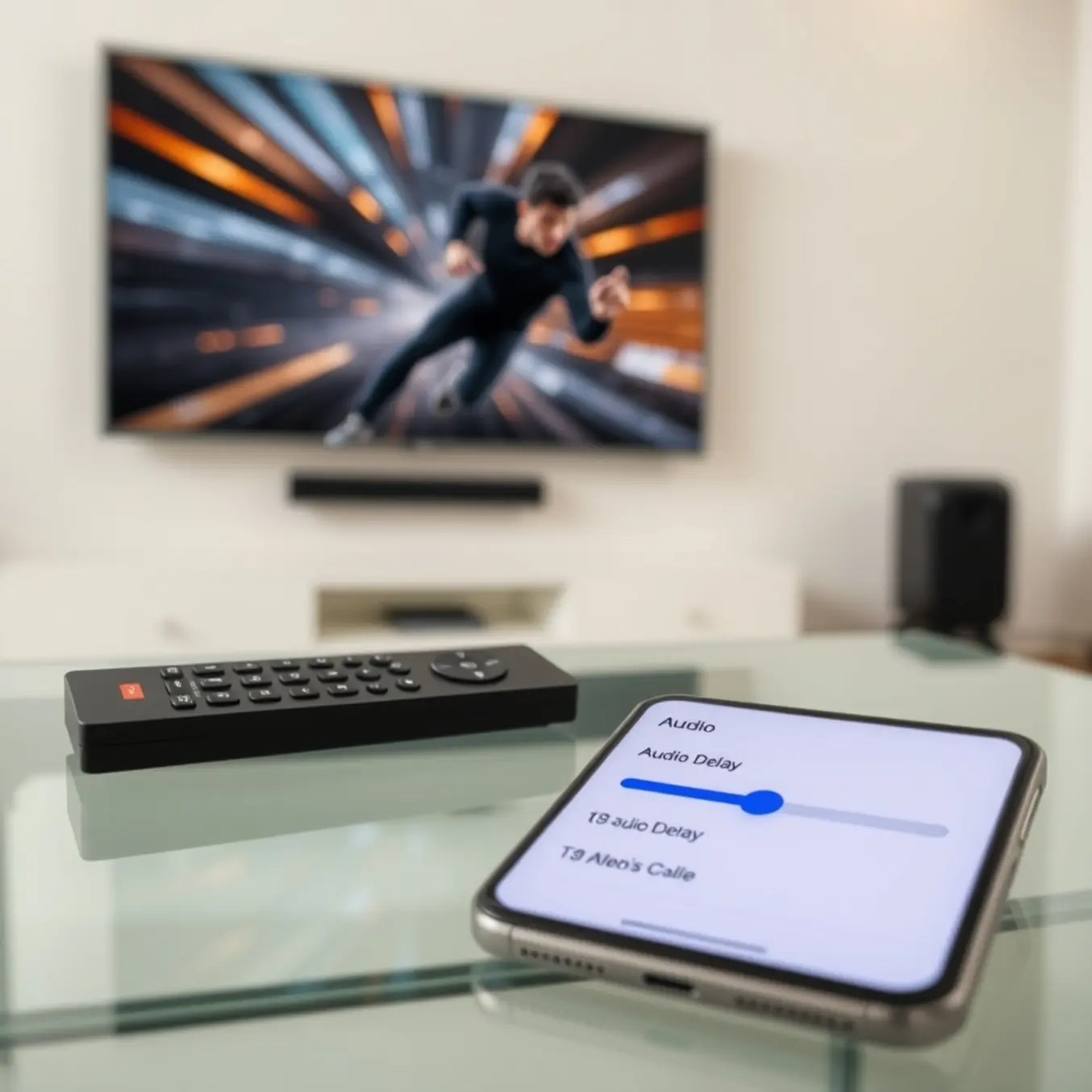
Smart TVs frequently experience audio sync issues due to processing delays between video and audio streams. On Samsung Smart TVs, navigate to Settings > Sound > Expert Settings > Audio Delay to manually adjust synchronization. For LG Smart TVs, access the Sound menu and select AV Sync Adjustment to fine-tune audio timing. These adjustments typically range from 0-300 milliseconds, allowing precise calibration. If you’re experiencing persistent issues, our comprehensive Smart TV installation guide provides additional troubleshooting steps.
Streaming Box Audio Calibration
Streaming devices like Firestick and Android boxes require specific audio settings adjustments. For Firestick users, navigate to Settings > Display & Sounds > Audio > Audio Sync to access the lip-sync correction feature. Android box users should check their specific media player settings – most IPTV apps include audio delay adjustments in their playback settings. For detailed Firestick configuration, refer to our Firestick setup guide which includes optimal audio settings.
Audio Receiver Configuration
Home theater systems and audio receivers commonly introduce latency through audio processing. Most modern receivers include lip-sync correction features in their setup menus. Look for options labeled “Lip Sync,” “Audio Delay,” or “AV Sync” in your receiver’s audio settings. Start with small adjustments of 10-20 milliseconds and test with content known to have sync issues. If your receiver supports it, enable “Direct” or “Pure Direct” mode to bypass unnecessary audio processing that can cause delays.
Advanced Technical Solutions
Advanced Audio Delay Settings
When basic audio sync adjustments fail, advanced audio delay configurations offer precise control over lip-sync issues. Many IPTV players and set-top boxes include granular audio offset settings that allow millisecond-level adjustments. For instance, popular players like TiviMate and IPTV Smarters Pro feature audio delay sliders that can be fine-tuned during playback. Research shows that even 100-millisecond discrepancies can create noticeable sync problems. Our TiviMate setup guide covers how to configure these persistent audio settings for consistent performance.
Network Buffer Optimization
Network-related audio sync problems often stem from inadequate buffering configurations. Increasing your IPTV player’s buffer size can dramatically improve synchronization by allowing the system more time to process audio and video streams in parallel. Most modern IPTV applications include buffer settings that can be adjusted from the default 2-3 seconds up to 10-15 seconds for problematic streams. However, larger buffers require more stable internet connections to prevent interruptions. Our comprehensive buffering guide explains how to balance buffer size with your available bandwidth.
Hardware Acceleration and External Tools
Hardware acceleration can significantly impact audio-video synchronization, particularly on devices with limited processing power. Enabling hardware decoding offloads video processing from the CPU to dedicated graphics hardware, creating a more efficient playback pipeline. On Android devices and streaming sticks like Fire TV, hardware acceleration settings can resolve sync issues. For advanced users, software solutions like K-Lite Codec Pack include audio renderers with adjustable delay settings that work system-wide.
Preventing Future Audio Sync Issues
Optimize Your Network Setup
A stable internet connection is the foundation of preventing audio sync issues in IPTV streaming. For standard definition content, aim for at least 10 Mbps, while HD and 4K streams require 25 Mbps or higher. Our detailed internet speed guide provides specific recommendations for different streaming qualities. Wired Ethernet connections consistently outperform Wi-Fi for streaming stability. If you must use Wi-Fi, position your router centrally and minimize interference from other devices.
Regular Maintenance and Proper Configuration
Regular maintenance prevents the gradual degradation that leads to sync issues. Clear cache and data from your IPTV app monthly to remove temporary files that can cause processing delays. Restart your streaming device and router weekly to refresh connections and clear memory. Within your IPTV app’s settings, look for audio delay or sync adjustment options. Many modern apps like TiviMate and IPTV Smarters Pro include built-in synchronization tools. Our Tivimate settings guide shows exactly where to find these adjustments.
Choosing the Right Equipment and Provider
Older streaming devices may struggle with processing high-quality audio and video simultaneously. Modern devices like the Amazon Firestick, Android TV boxes, or Smart TVs with sufficient processing power handle synchronization more effectively. Discover the best IPTV-compatible devices that maintain perfect audio-video alignment. If you experience consistent synchronization problems across multiple channels, devices, and apps, the issue likely lies with your IPTV service provider. Reputable providers from our tested list generally maintain better synchronization across their channel lineup.
Troubleshooting Checklist
Systematic Problem Isolation
Begin by determining whether the audio sync issue affects all content or just specific channels. Test multiple channels and content types to identify patterns. If the problem occurs across all programming, the issue likely lies with your device or connection. Conversely, if only certain channels exhibit sync problems, the source may be with your IPTV provider’s streaming quality. Check if the sync issue appears on multiple devices to determine if the problem is device-specific.
Comprehensive Diagnostic Steps
Start with the simplest solutions first. Restart your streaming device, router, and any audio equipment. Power cycling can resolve temporary glitches that cause audio processing delays. Check your internet connection stability, as buffering and network latency often contribute to audio sync problems. Access your device’s audio settings and look for synchronization or delay adjustment options. Many modern streaming devices, including Firestick devices and smart TVs, include built-in audio delay correction features.
Advanced Resolution Strategies
Update your IPTV application to the latest version, as developers frequently release patches for audio synchronization issues. If using popular players like TiviMate or IPTV Smarters Pro, check their specific audio settings for synchronization controls. Clear the application cache and data, as corrupted temporary files can cause playback issues. If basic troubleshooting fails, connect your device directly to your router via Ethernet cable to eliminate Wi-Fi variability.
When to Seek Professional Assistance
If you’ve exhausted all troubleshooting steps without success, contact your IPTV provider’s customer support for service-specific diagnostics. They can check if the problem originates from their servers or channel sources. Consider professional help if the issue appears to be hardware-related and your equipment is under warranty. Additionally, if audio sync problems occur across multiple services and devices, the issue might lie with your television’s internal processing, which may require technical repair.
Sources
- All In One TV – Best IPTV for Firestick 2024-2025: Fast, Legal, and Reliable Options
- All In One TV – Best IPTV Services for Firestick, Android, and Smart TV in 2025
- All In One TV – How Much Internet Speed Do You Need for IPTV Streaming?
- All In One TV – How to Fix Buffering on IPTV: A Comprehensive Guide
- All In One TV – How to Install IPTV on Your Smart TV: A Comprehensive Guide
- All In One TV – How to Use VPN for IPTV: A Comprehensive Guide to Unlocking Global Streaming
- All In One TV – IPTV Smarters Pro 2025 Update: Explore New Features and Installation Guide
- All In One TV – IPTV Smarters Pro Setup Guide: A Comprehensive Step-by-Step Tutorial
- All In One TV – IPTV Subscription Plans Explained: How to Choose the Right One
- All In One TV – TiviMate IPTV Player Setup, Subscription, and Best Settings for Optimal Streaming
- All In One TV – Top Trusted IPTV Service Providers for Sports, News, and Movies: A Curated Guide
- All In One TV – Unlock Your Entertainment: How to Set Up IPTV Subscription on Firestick in Under 10 Minutes
- All In One TV – Your Comprehensive Guide to All In One TV Customer Support
- Android Central – How to Enable Hardware Acceleration on Android
- ResearchGate – Detection of audio-visual asynchrony in speech and nonspeech events
- Speedtest by Ookla – Internet Speed Test
- TechHive – How to Fix Audio Sync Issues on Your TV
- VideoHelp – K-Lite Codec Pack